Google Workspace is widely used both as an identity provider (IdP) and as a provider of core IT services. As an IdP, Google Workspace manages your employees' and contractors' digital identities and provides single-sign-on (SSO) to other apps. Google Workspace also provides email, calendar, file storage and office apps, together with a number of other services.
When an employee or contractor leaves your organization, it's important to revoke their access to Google Workspace so that:
- They can no longer access their work email account, calendar or files.
- They can no longer use their Google Workspace credentials for SSO to other apps.
- You can allocate their license to another account or reduce your license costs.
You may also want to take steps to retain access to the contents of the terminated employee's or contractor's email inbox and files, forward any incoming emails, and reassign any upcoming meetings.
With 1Password SaaS Manager, you can configure an automated offboarding workflow to address all of these matters. Using a workflow to manage offboarding ensures your process is followed consistently and provides an audit trail that you can refer back to in future.
Recommendations for IdP offboarding
Offboarding workflows typically use the "Person leaves" workflow trigger and can address a single app or multiple apps. If you're using Google Workspace as an IdP, we recommend you create a dedicated workflow for offboarding from Google Workspace and run this workflow first. There are two reasons for this:
- As an IdP, Google Workspace typically provides SSO access to a large number of apps. By offboarding terminated employees or contractors from Google Workspace first, you can typically revoke access to many apps - and thereby secure access to many of your systems - in one step.
- Having a dedicated workflow allows you to monitor and report on progress of offboarding individuals from Google Workspace easily, which can be useful for demonstrating compliance.
If required, you can trigger another workflow after the key offboarding steps in your Google Workspace offboarding workflow.
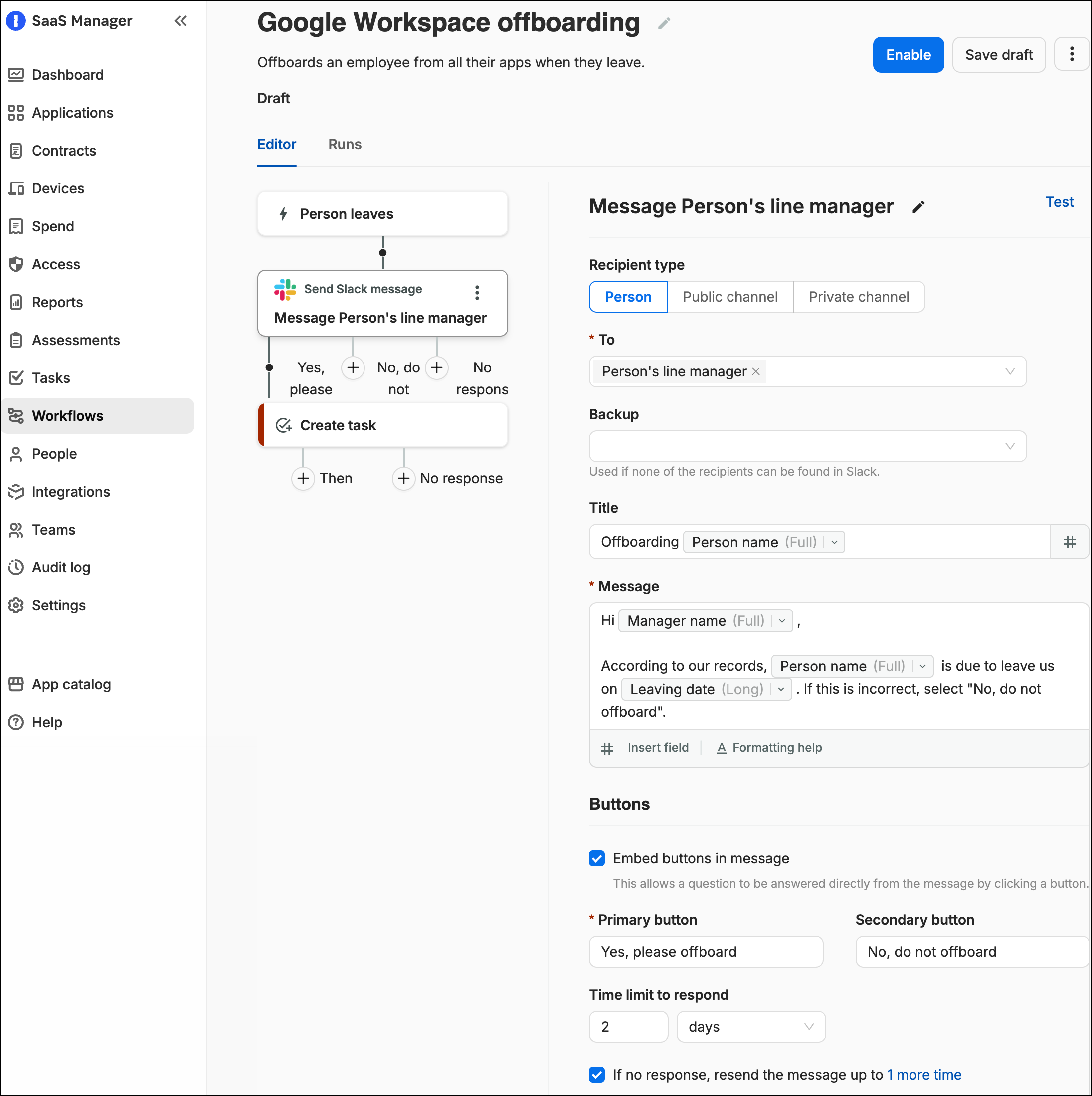
The "Person leaves" workflow trigger uses the individual's termination date. To avoid a person being offboarded by mistake due to a mistyped date, we recommend including a confirmation step at the start of each offboarding workflow. For example, you can send a Slack or Teams message or an email to the individual's line manager with a confirmation button to initiate the next step. For more information about configuring the workflow trigger and confirmation step, see Automate employee offboarding.
Prevent former employees from logging in to Google Workspace
Google recommends taking the following steps to maintain security when an employee leaves your organization:
- Wipe any company-owned laptops or mobile devices. (This is usually managed by a specialist MDM product, such as JAMF for Apple.)
- Revoke password recovery access.
- Change the account password.
- Revoke all OAuth 2.0 app tokens.
- Reset the account's sign-in cookies.
- Revoke security keys and app password access.
- Delete the account.
SaaS Manager provides two workflow steps to address steps 2-6 in Google's recommendations:
- The "Clear account settings" step:
- Removes the account from the global address list.
- Clears the recovery email and recovery phone fields for the account.
- Removes the account from all groups.
- Removes all email aliases.
- The "Revoke access" step:
- Signs the account out from Google.
- Resets the account password to a random string.
- Revokes all OAuth tokens (thereby logging the account out of any other apps that they have accessed via SSO).
- Revokes any app-specific passwords.
- Revokes any 2FA verification codes.
We recommend including both of these steps towards the beginning of an offboarding workflow. This ensures that the terminated employee or contractor no longer has access to their business email, calendar or files, and they cannot log in to any apps or systems that use Google Workspace for authentication.
Manage resources before deleting the account
After clearing the account settings and revoking their access to Google Workspace, you can add further workflow steps to retain access to the leaver's existing emails, files and calendar, and set up forwarding for any new emails. It is important to complete these business continuity tasks before downgrading or removing the leaver's Google Workspace license. You can also use the "Wait" step to introduce a delay between steps, and automated Slack/Teams messages or emails to request input from the leaver's line manager.
As an example, a typical Google Workspace offboarding workflow might include the following steps:
- Confirm the individual is leaving on the specified date and should be offboarded using Send Slack/Teams message or Send email.
- Clear account settings and Revoke access to Google Workspace. This also revokes SSO access to other apps.
- Transfer resources from the terminated employee's existing Google Drive folders and calendar to another individual.
- Leave the account active and either Set email forwarding address to the terminated employee's line manager or Assign delegated access to email so their line manager can review the inbox and address any incoming emails.
- Trigger another workflow to initiate offboarding from other apps that are not managed via Google Workspace.
- Wait two weeks after the leaver's termination date.
- Use Send Slack/Teams message to ask the line manager whether they still need access to the terminated employee's emails.
- If access is no longer required, then use Delete account to delete the account and reduce your license costs.
If access is still required, either use Archive account to downgrade the account to an archive license (if available) or Export account emails to Google Drive and Convert account to group (or manually configure routes) to forward the terminated employee's emails before deleting the account.
Manage access to existing emails and files
If you want to retain access to an individual's emails, files and calendar events after they leave your organization, there are a number of options available.
Archive account
If you have purchased Archive licenses for Google Workspace, you can use the "Archive account" step to move the account from an active license to an archive license. Once archived, the account's inbox, files, folders and calendar events remain accessible to Google Workspace admins and other permitted accounts.
As emails cannot be sent or received by an archived account, you may want to keep the account active and forward emails temporarily, or configure long-term email forwarding by converting the account to a group before archiving, as described below.
For more information about archived accounts in Google Workspace, refer to the Google Workspace Admin Help.
Transfer resources
You can transfer the account's Google Drive folders and their calendar events to another account, such as their line manager or a service account. This ensures that any files remain available and that someone has visibility of booked meetings, without incurring the cost of an Archive license.
As this option does not address the leaver's emails (either existing or future), you may want to use it in conjunction with other offboarding options.
Export account emails to Google Drive
If your Google Workspace plan includes Google Vault, you can export the leaver's emails to a shared drive in either MBOX or PST format. Accounts with access to the shared drive can then review the leaver's email history as required. This is useful if you want to retain access to existing emails for an extended period and do not want to pay for Archive licenses. (While this process completes the export using Vault it doesn’t actually create a legal hold, or store the email in Vault, so the account can be deleted afterwards without loss of data.)
As new emails will not be added to the shared drive, you also may want to take steps to forward any new emails to another account, as described below.
For more information about Google Vault, including whether it's included in your plan, refer to the Google Workspace Admin Help.
Assign delegated access to email
Assigning delegated access to another account is useful if you want to give someone (such as the leaver's line manager) an opportunity to review the leaver's inbox and extract anything they need from it.
Reviewing emails from the normal email client is typically easier than doing so from Google Drive or an archived account. However, the leaver's account must remain active to assign delegated access. This means it will continue to incur a license cost and will continue to receive new emails. For these reasons, this option is best used as a temporary measure before either archiving the account or exporting emails to Google Drive and deleting the account.
To use this option, you must enable domain-wide delegation for SaaS Manager through the Google Admin console.
Forward new emails
If you want to ensure that any new emails to the leaver's email address are not returned to the sender, you can use "Assign delegated access to email" (discussed above) or one of the following options.
Convert account to group
If you want to archive or delete the leaver's account while still forwarding their emails, you can use this option to convert the leaver's email address to a group and then forward group emails to their line manager.
This step:
- Renames the terminated employee’s account (for example, from
john.smith@example.comtoterm_emp_john.smith@example.com). - Creates a group with the original email address of the terminated employee, configured to receive emails. The Google group name is in the format
term_emp-{email}and the description isTermed - Email forwarding {email}. - Removes any aliases associated with the terminated employee’s account, and transfers them to the group that was created. The "Clear account settings" step removes aliases by default, so if you want to keep and move aliases to the group, select Do not remove aliases in the "Clear account settings" step.
- Gives the line manager access to the group so that emails are forwarded to their mailbox.
If there is no line manager, the group is configured to store incoming emails so that they can be read at a later data using the Google Groups application.
Add alias to a person
Alternatively you can add the terminated employee's email address as an alias to another employee's account, such as their line manager's account. This is similar to creating a group, but associates the alias directly with a different person rather than administering the alias via a group. Any new emails addressed to the terminated employee are sent to the holder of the alias. You can add up to 30 email aliases to each Google Workspace account.
You cannot create an alias for an existing account. To add an alias to a person, you first need to rename the terminated employee's account or delete their account. To rename the account, use the "Change primary email address" step and select Remove all existing aliases. (This removes the alias for the previous email address that Google Workspace adds automatically when you rename an account.)
Create task to configure routing manually
You can configure up to 1000 email routing rules in Google Workspace and use these to redirect incoming emails to a different address. Unfortunately Google's API does not allow SaaS Manager to configure routing rules automatically. If you would like to use routing rules, we recommend using the "Create task" workflow step to notify the relevant individuals in your organization that a new route needs to be added.
For more information about setting routing rules, refer to the Google Workspace Admin Help.
Set email forwarding address
You can forward emails from one active Google Workspace account to another. As with "Assign delegated access to email", this is best used as a temporary measure, after which the leaver's account should be archived or deleted to reduce license costs.
Remove the account's Google Workspace license
We recommend using the "Set account license" workflow action to set an account license to "None" which will remove their license.
The account's emails and documents are not removed when you remove the account license, although Google does not commit to retaining the data either, so this should only be viewed as a short term measure before backing up or transferring data.
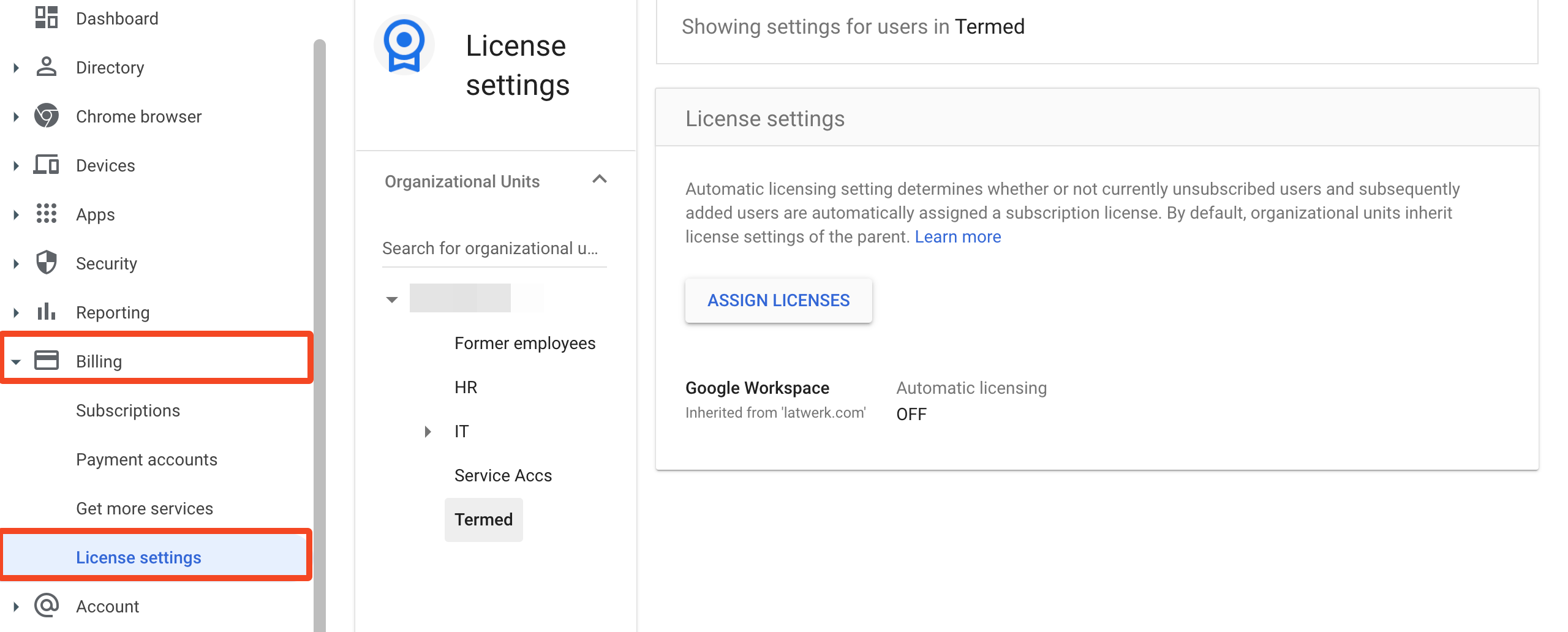
If you receive the error "Auto License un-assignment is not allowed", this is likely because your Google Workspace is configured to automatically assign licenses.
You can disable this policy for individual organizational units, so one alternative to completely disabling auto license assignment is to move the account to a different organizational unit where automatic licensing is turned off, before removing the license.
Delete the terminated employee's account
If you do not want to incur the cost of an archive account license, you can use the “Delete account” step to delete the account. This step should only be performed after you have extracted any emails, files and calendar entries you require from the terminated employee's account and set up email forwarding via a group or a route.
Deleting a account in Google Workspace moves all resources associated with the account to the recycle bin. After 20 days, the account and all resources are permanently deleted.
Data retention considerations
Archiving all leavers' accounts or exporting leavers' emails to shared drives can have a significant impact on storage costs. Equally, groups or routes created to forward any new emails addressed to former employees are likely to become redundant after a period of time.
You can configure a dependent workflow to delete archived accounts or ask IT staff to clean up shared drives, groups and routes a number of months after the initial offboarding workflow completed.
For example, you might configure a Google Workspace offboarding workflow to grant delegated access to the leaver's account for two weeks, and then set up a group to forward incoming emails to the line manager before archiving the account. After a year, it's possible that email forwarding will no longer be necessary and that any files or emails that are required have been extracted from archive.
In this case, you can create a second workflow with the "On demand" trigger to delete the archived account and create a task to remove the group and forwarding rule:
- Use the "Trigger another workflow" step to initiate this workflow from the Google Workspace offboarding workflow, and add a "Wait" step to delay the relevant steps in the dependent workflow for an appropriate amount of time.
- As with the initial offboarding workflow, you can also include a confirmation step to ask the line manager or another individual whether the account can now be deleted.
Wiping account details from a device
Many organizations deploy Google Drive for Desktop to make accessing files easier on macOS and Windows. SaaS Manager can wipe Google related account details from account work profiles on devices where Google Drive for Desktop is installed.
Use the Block or wipe Google account data workflow action.
https://www.googleapis.com/auth/cloud-identity.devices scope .Wiping an account will remove cached data from Google Drive. It will not remove other data from a device. The account user will receive a message stating that an administrator has initiated a wipe on their account, and that they have been logged out and removed from Google Drive. You can read more about this in Google's documentation in particular the "How wipe works by platform or management type" section. This also describes how it impacts Android and iOS devices.
Providing their Google account is not suspended, the account will still be able to login to Google Drive again.
You can explicitly block future connections from associated devices using the Block action. The account user will receive a message stating that their access has been blocked, and that they have been logged out and removed from Google Drive. Read more in Google's documentation in the "Block a device" section.
Comments
0 comments
Please sign in to leave a comment.