1Password SaaS Manager is a platform that helps IT teams to identify and manage the apps that are in use within their organization.
When you set up 1Password SaaS Manager for the first time, you will have connected 1Password SaaS Manager to your identity provider, such as Google Workspace, Microsoft Entra ID or Okta. You can also configure integrations to connect 1Password SaaS Manager to other apps, such as:
- Business productivity tools and apps that your organization's employees use in the course of their work, such as Slack or DocuSign.
- Finance systems, such as NetSuite or Xero.
- HR systems, such as BambooHR.
- Device management systems, such as Jamf Pro or Kandji.
1Password SaaS Manager uses these integrations to collect usage data and other details. By collating this with information from other sources, 1Password SaaS Manager provides insights that can help you reduce your SaaS spend, improve engagement and manage license renewals. You can also use integrations to manage app accounts from 1Password SaaS Manager, including automating employee onboarding and optimizing license allocations.
Add new integrations
To add new integrations to 1Password SaaS Manager, navigate to Integrations and then search or browse for the apps that you want to connect to. Select an app integration to view the data that 1Password SaaS Manager will access and the permissions that 1Password SaaS Manager will request when you connect it to the app.
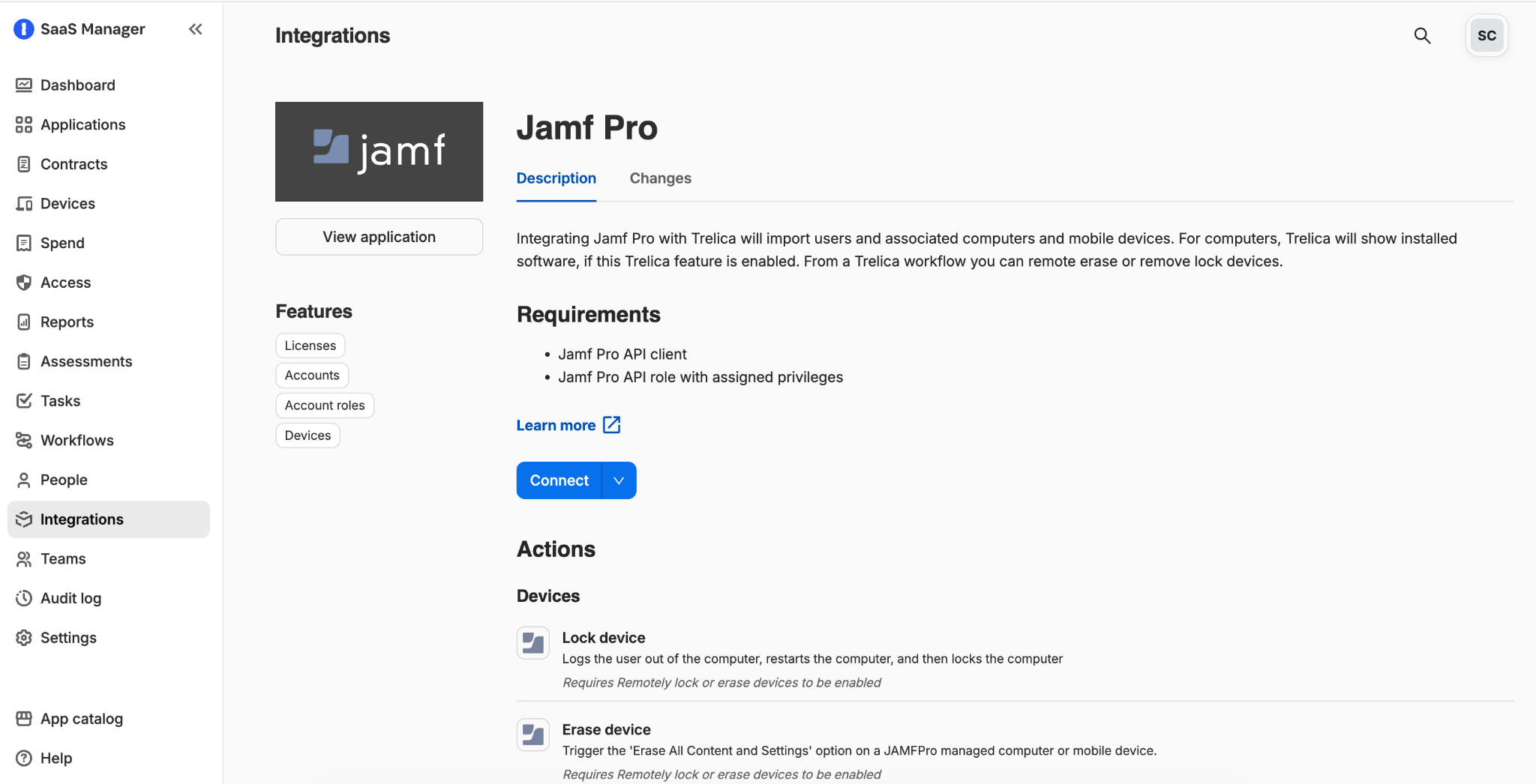
To start the process, select Connect and then follow the on-screen instructions. Depending on the app, you may need to grant 1Password SaaS Manager access via OAuth2 or generate an API key from the app and enter it into the integration settings. These options are discussed in more detail below.
In either case we recommend using a dedicated user account for each app, rather than using your own user account to log into the app and grant access.
If an app allows you to restrict API requests to particular IP addresses, you can add the relevant 1Password SaaS Manager IP addresses to the allow list.
If your organization has multiple instances of an app, we recommend connecting each instance to 1Password SaaS Manager so that you can form a full picture of app usage. For more information, see Multiple app instances.
Connection types
1Password SaaS Manager typically connects to apps in one of two ways: via the OAuth2 protocol or using an API key.
OAuth2
OAuth is an open standard which lets you delegate access to your data to another application. This means that you can easily instruct an app to give 1Password SaaS Manager access to certain types of data. OAuth is the simplest way to control data sharing between SaaS apps.
The typical flow for configuring an OAuth integration is as follows:
- Select Connect in 1Password SaaS Manager to initiate the connection to the app.
- 1Password SaaS Manager sends a message to the app saying that you want to give 1Password SaaS Manager access to certain types of data.
- The app asks you to log in.
- The app shows you what access 1Password SaaS Manager has requested, for example access to user data.
- You select a button to authorize the request.
Where possible our integrations use OAuth as this gives you the simplest, most secure and flexible integration experience.
API keys
API keys are an older way of giving another SaaS app access to data. They're like a password, and they typically give quite broad access rights in terms of what 1Password SaaS Manager can do. Some apps give you a single API key that you use for all the apps you want to connect, whereas others let you generate specific API keys for each app that you want to connect to (a better approach).
The typical flow for configuring an API key integration is as follows:
- Log in to the app you want to connect to.
- Find the page that displays the API key or allows you to generate API keys.
- Copy the API key to the clipboard.
- Return to the integration page in 1Password SaaS Manager, and select Connect to initiate the connection to the app.
- Paste in the API key.
- Save the connection.
If you change or delete the API key that 1Password SaaS Manager is using, the connection will be broken and you will need to reconfigure the connection in 1Password SaaS Manager.
Refresh data from an integration
By default, data from integrations is refreshed daily. To refresh data manually, open the integration details page and select Refresh. Note that for spend data, 1Password SaaS Manager pulls deltas by default.
Next steps
More information about specific app integrations is provided in the following sections. If you need assistance or the app you want to connect to is not listed, please contact our Support and Customer Success team.
Comments
0 comments
Please sign in to leave a comment.