What is the 1Password SaaS Manager browser extension and how does it work?
Your IT team is using 1Password SaaS Manager to understand and manage the web-based apps that are being used in your organization.
By helping build a picture of what tools people are really using day-to-day, you can help the IT team to save money and better support the tools people are actually using.
Installing the browser extension
The browser extension can be added to Google Chrome, Microsoft Edge, Mozilla Firefox or Apple Safari. Alternatively, your IT team may install the extension for you.
Using the browser extension
Once the browser extension has been added to your browser, you may be automatically recognized, or you may need to log in to SaaS Manager with your work email address:
- From the browser toolbar, click the extensions icon. The extensions that have been added to the browser are listed.
- Select SaaS Manager from the list. The SaaS Manager extension is displayed.
- Select Login.
- Enter your email address, select Next and follow the log in prompts.
Once you have logged in, you can leave the browser extension to run in the background.
If you want to see what applications have been identified, click the Extensions icon in the browser toolbar and select SaaS Manager from the list. A pop-up is displayed showing the apps that the browser extension has detected.
What does the browser extension do?
The browser extension looks at the URL (web address) of the browser tab you are currently using.
If the URL matches the list of known business app URLs in SaaS Manager, the extension records that the app was used by you. This check is done directly on your computer. The extension only sends data to SaaS Manager if we think the URL matches a business app.
In cases where the extension detects a login event for a business app, data will only be posted back if you logged in with a verified work-domain email address or provider (such as Google, Microsoft or Okta).
Sometimes the URL looks like an app, but we're unsure. In this case, the extension will mark the URL with a "?". We do not record the person who used the URL, and your organization will not see that this URL was accessed.
SaaS Manager does not store cookies or credentials (passwords).
What data gets sent to SaaS Manager?
Usage data:
- URL visited
- Date and time visited
- Whether SaaS Manager detected a login link being clicked, or just activity
Browser extensions installed
- The extension ID, name and URL
- The permissions it has been granted
- The date it was detected by SaaS Manager
Optionally, if your IT team has deployed the Browser Helper
- The serial number, make and model of your computer.
Protecting your privacy - opting out of tracking specific applications
SaaS Manager aims only to track apps that have a business purpose. In the rare scenario where we have tracked non-business usage, you can ensure the app is ignored in future.
Go to the pop-up, hover your mouse over the app, and select the Ignore app icon.
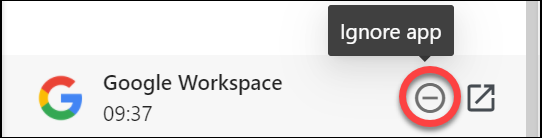
The extension intentionally waits for a period of time before a URL is sent to SaaS Manager for categorization (24 hours by default). This gives you the opportunity to ignore apps before any data is sent.
If the data has already been sent (e.g. after 24 hours), then you can still mark the app as ignored, and no further data will be sent regarding it.
How is data used by SaaS Manager?
SaaS Manager only aims to track usage of business apps via the browser extension. The browser extension informs SaaS Manager that a user is accessing a business app and this is then used to present usage data in SaaS Manager, to help optimize and reduce software spend.
This data is visible to any SaaS Manager administrators in your organization, or to nominated application owners.
Browser extension data is shown in a report, available to SaaS Manager administrators in your organization. This shows which browser extensions are in use in the browser where the SaaS Manager extension is also installed and potential security risks based on the permissions they have.
Comments
0 comments
Please sign in to leave a comment.