1Password SaaS Manager connects with DocuSign using the OAuth2 protocol.
This is a straightforward and secure way to connect two applications.
It involves logging in to DocuSign and confirming that you are happy to give SaaS Manager permission to access certain data or functionality.
Where possible we recommend using a service account to connect, since the access is tied to the user you log in to DocuSign with. The integration will stop working if this user’s account in DocuSign is deactivated.
- Go to Admin > Integrations and find DocuSign.
- Click on the icon to see the details of the integration.
-
Click Connect.
You will be able to choose the features you want to enable. The permissions requested by SaaS Manager may vary depending on the features selected. You can review these in the Required permissions section.
- Click Connect again if required and you will be redirected to the login screen for DocuSign.
- Log in when requested, and click to grant permissions to SaaS Manager if asked.
If you logged in successfully you will be taken back to SaaS Manager and the integration will start running.
Limiting access
DocuSign uses scopes to define the access level that SaaS Manager will be granted. Some of these are quite broad (e.g. the signature) scope. To further limit SaaS Manager's access we recommend creating a custom Permission Profile.
Go to Accounts > Permission Profiles and click Add Permission Profile:
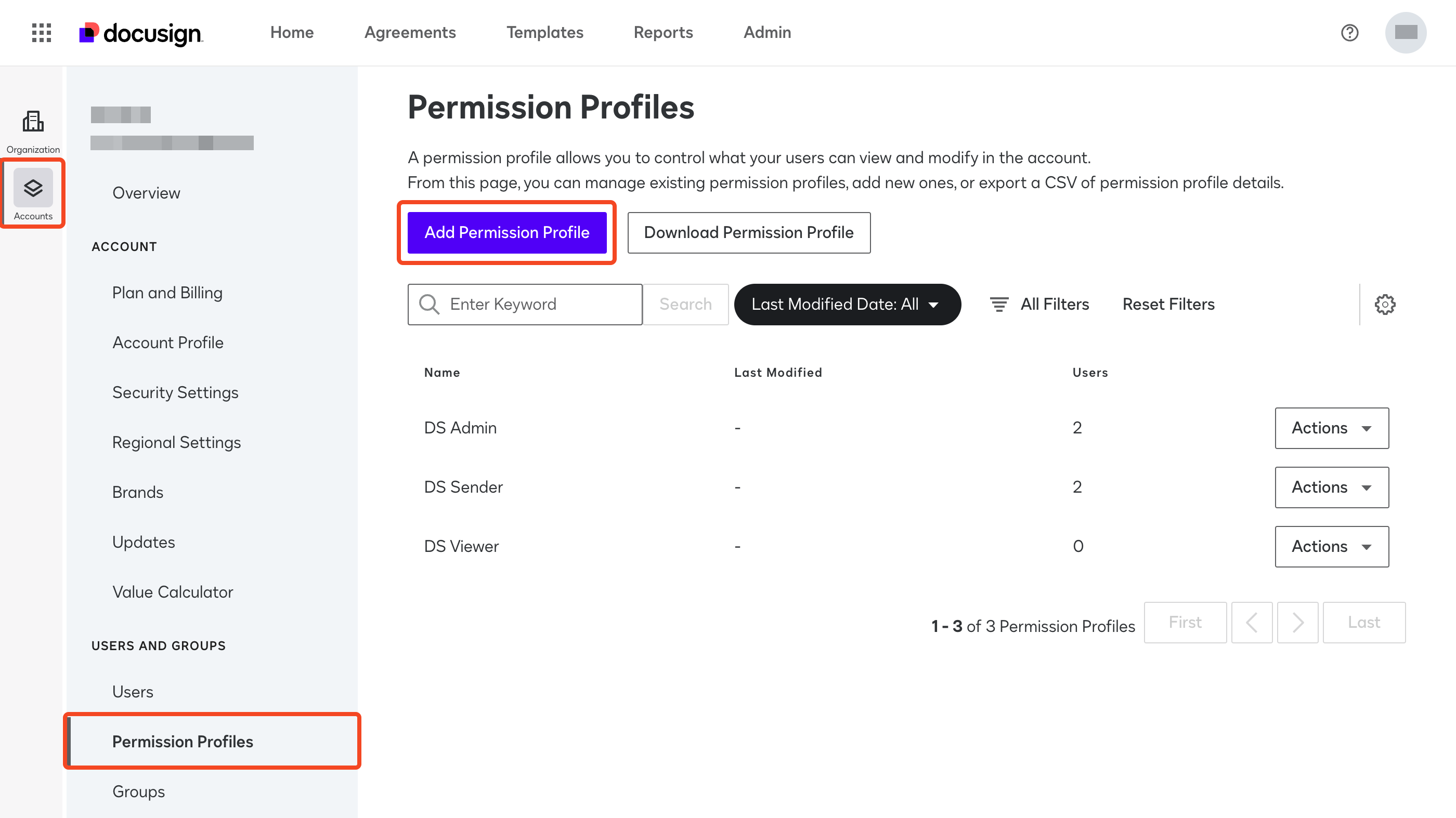
Enter a name (e.g. 1Password SaaS Manager) and on the Admin Permissions tab choose Allow Some.
Under the Permissions list check Users and Groups and (assuming you are not provisioning or deprovisoning) choose View Only.
Click Add.
Now create a new DocuSign user using this permission profile.
When you connect to DocuSign from SaaS Manager you will be prompted to login. Use the login details for the newly created limited permission user you just created.
Comments
0 comments
Please sign in to leave a comment.