How does 1Password SaaS Manager work with Slack?
1Password SaaS Manager helps IT teams keep on top of what SaaS software has been bought, how much money is being spent on it, how well it's being used and whether everything is compliant from a security and privacy point of view.
SaaS Manager can connect directly to different SaaS tools (like Slack) to extract up-to-date information about which of your users are using Slack, and how regularly they are logging in. This will help you improve engagement, deprovision unused seats, and prepare for your license renewal.
Getting started
If you received an email asking you to set up the integration, select the link in the email. Otherwise, log in to SaaS Manager and go to Integrations to get started.
You must be an administrator of your Slack site in order to connect with SaaS Manager.
As an administrator, you may have received an invitation from someone in your IT team asking you to connect Slack to SaaS Manager.
In the Search box, enter "Slack", then select the Slack logo to get started.
Connecting to Slack
Select the Connect button at the top-right.
You will then be asked to log in to Slack and shown a message explaining that SaaS Manager wants to connect to your organization's Slack site.
If Slack is showing the wrong workspace, then use the picker at the top-right to change to log in to a different Slack workspace.
Select Allow and you will be taken back to SaaS Manager.
After a short pause, SaaS Manager will start to synchronize with Slack and you'll see a green tick when everything is done.
Although this shouldn't take long, you don't have to wait for this to happen - once you're back in SaaS Manager feel free to go off and do other things.
To go to the Slack profile page and see more information, select the View application button:
At this point you may wish to review the user list or fill in more information about the number of seats you have, when you renew your Slack license.
Creating invitation links
If you're on the Slack Pro plan then you cannot use the Slack API to create user accounts.
To help with onboarding you can create a link in Slack that you can send to new starters to help them configure a new Slack account.
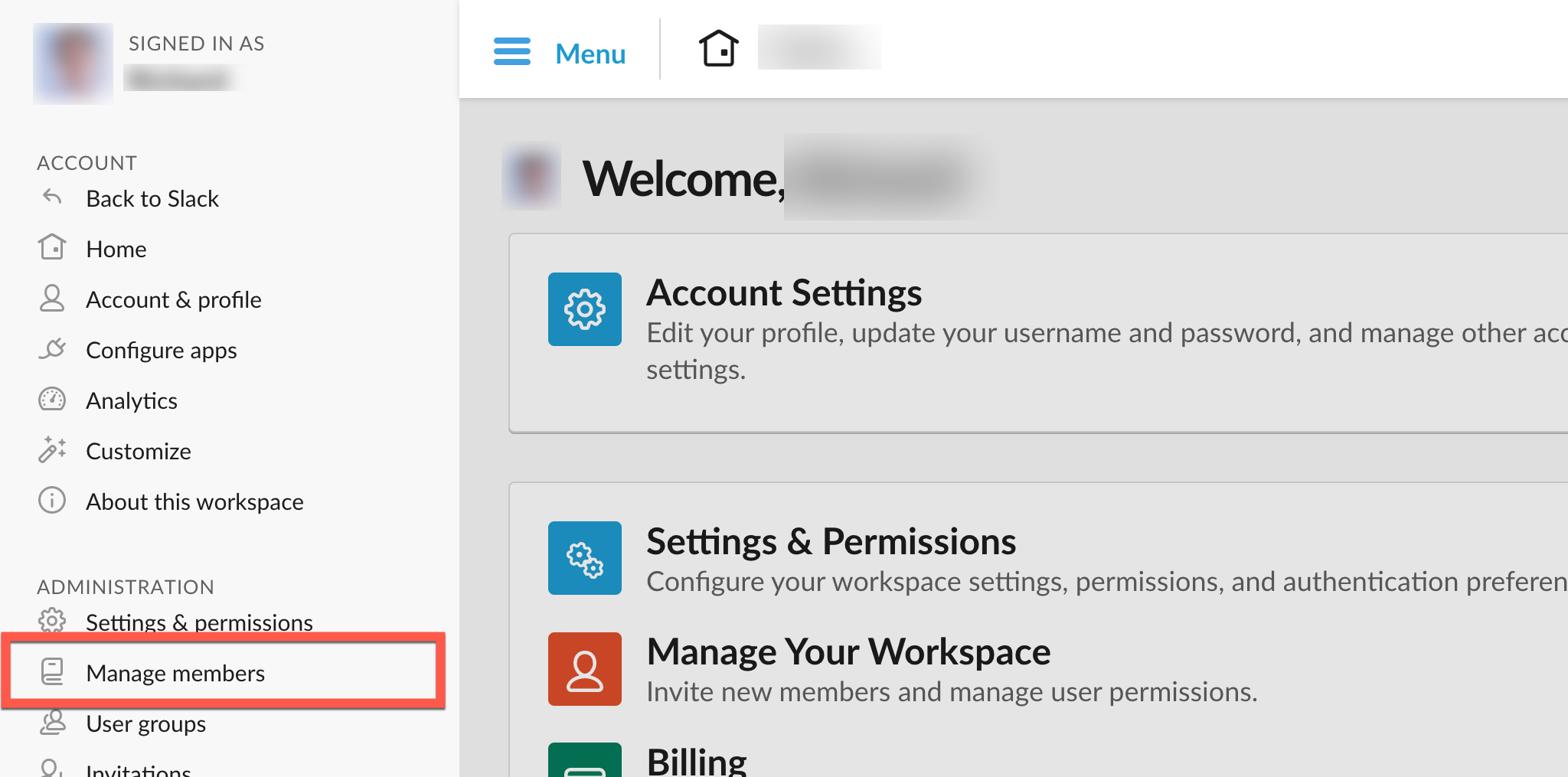
Go to Manage members:
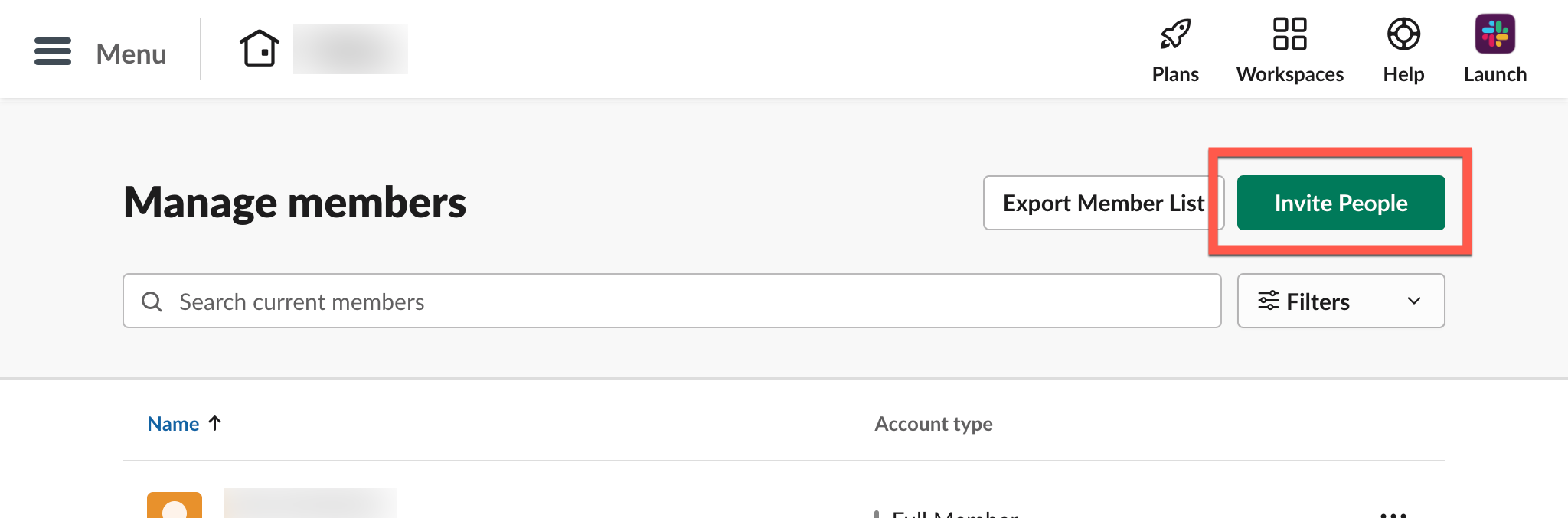
Select Invite People:
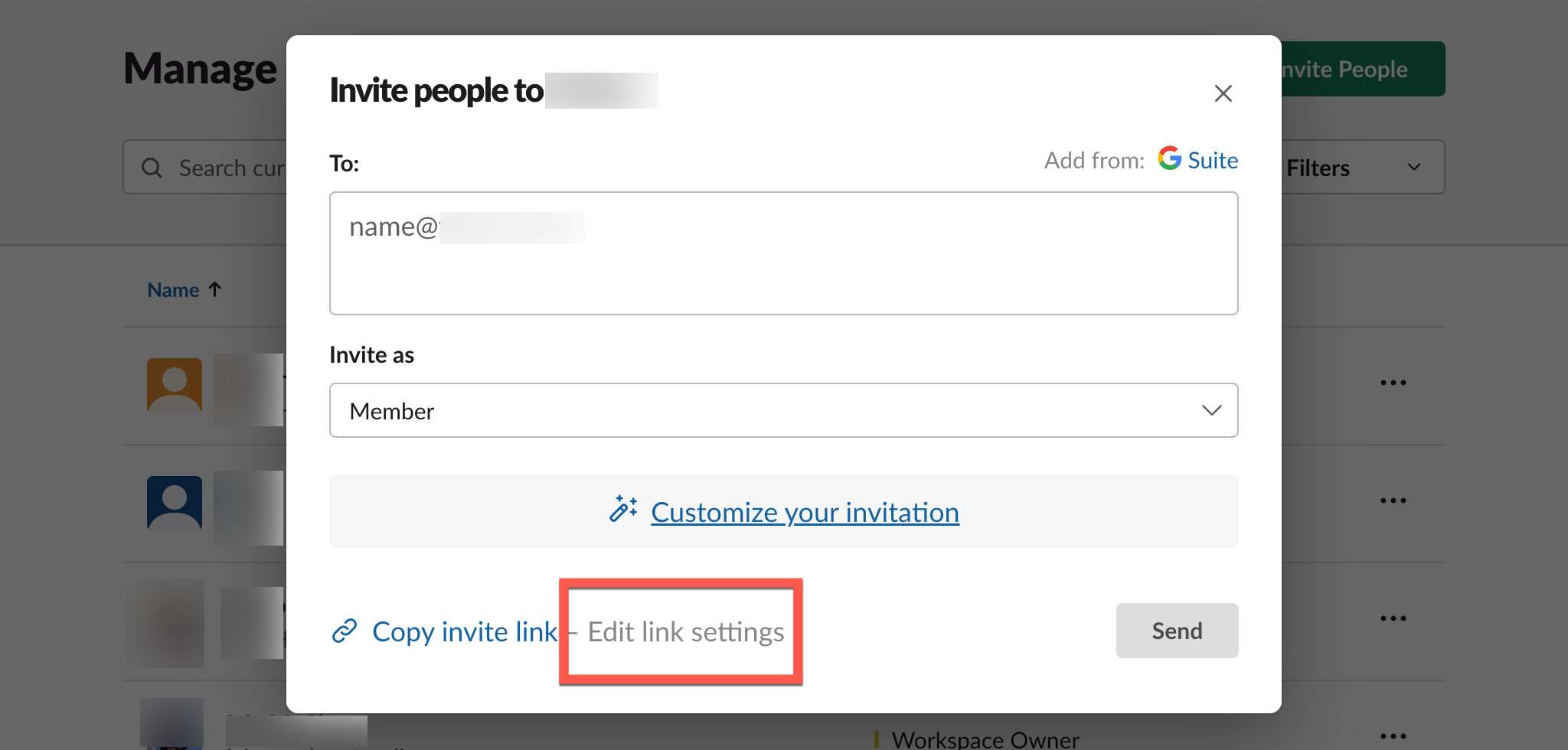
In the popup that appears, select Edit link settings:
Select Never expires from the dropdown and then select Save:
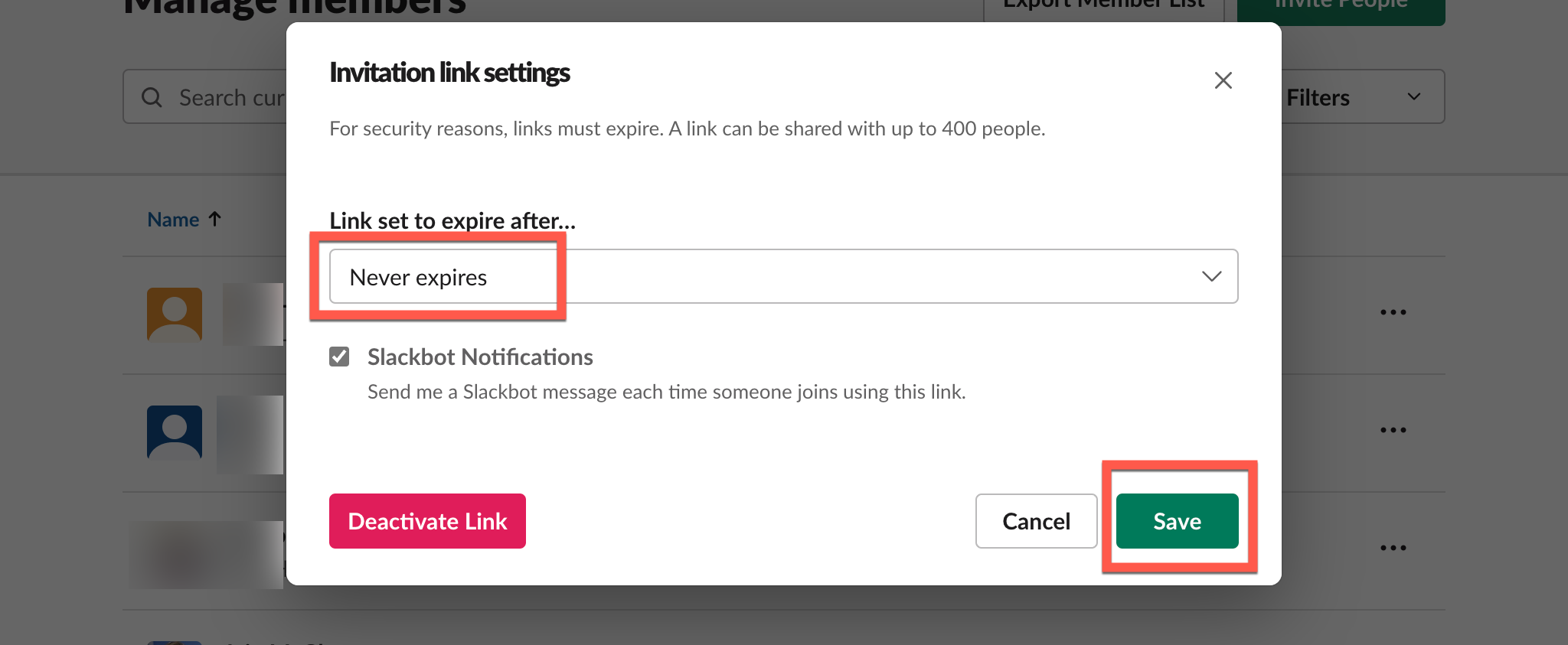
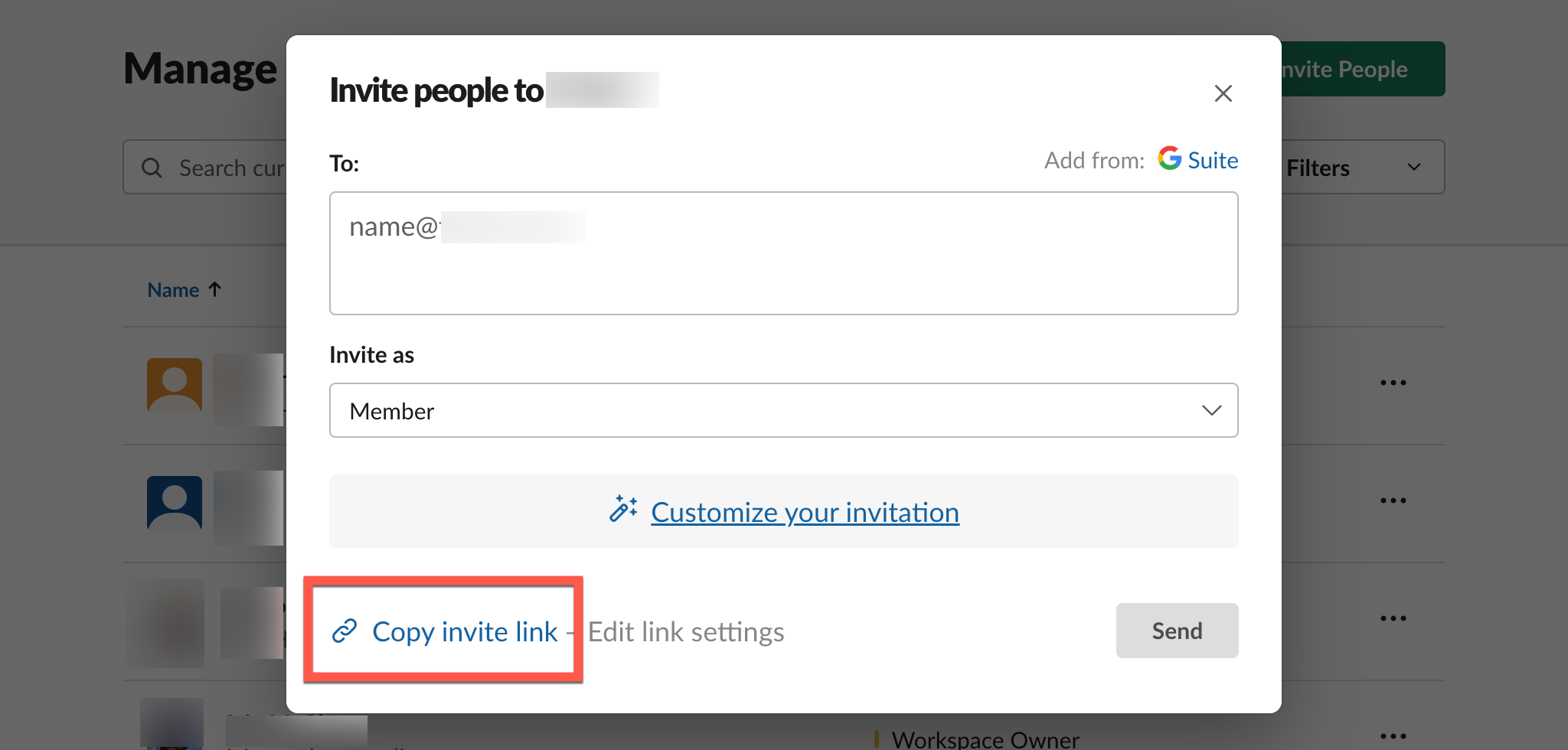
Now select Copy invite link to put the link onto your clipboard.
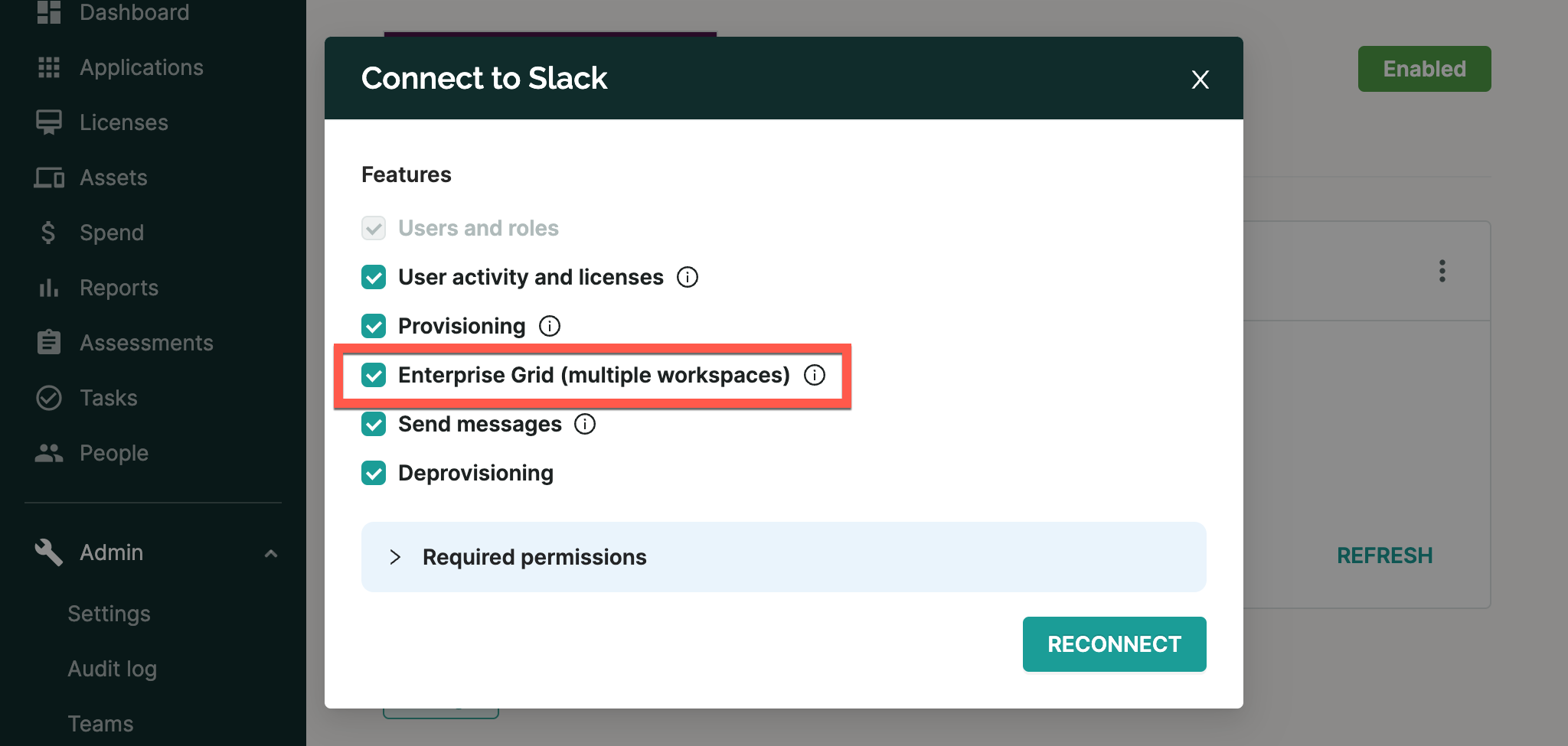
Enteprise Grid
SaaS Manager is compatible with Slack Enterprise Grid accounts. When connecting Slack to SaaS Manager please ensure the Enterprise Grid (multiple workspaces) checkbox is selected:
Selecting a workspace
When you send messages from a SaaS Manager workflow to a public channel then you need to select the Enterprise Grid workspace first.
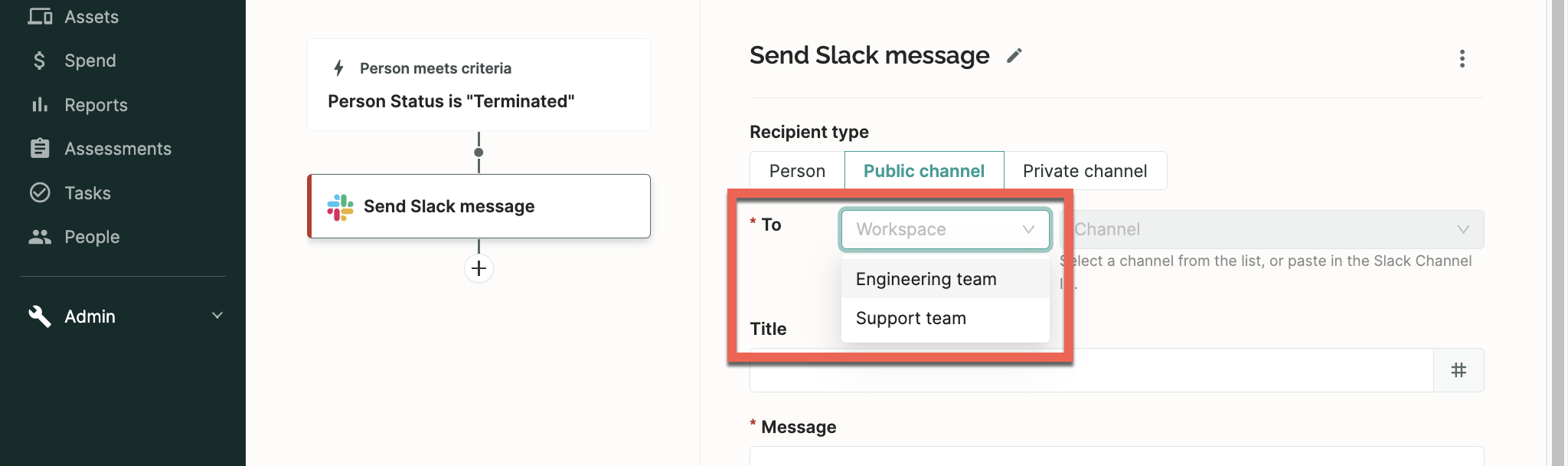
If you can't see all your workspaces when sending a message then you may need to manually add the SaaS Manager app to them.
Add 1Password SaaS Manager app to workspaces
When connecting SaaS Manager to a Slack Enterprise Grid, the SaaS Manager app is installed for your Slack organization. In order to view user activity for and send messages to workspaces within your organization you may need to manually add the SaaS Manager app to each workspace.
To manually add the SaaS Manager app to one or more workspaces, go to your organization home page (e.g. https://yourorg.enterprise.slack.com) and select Manage Organization.
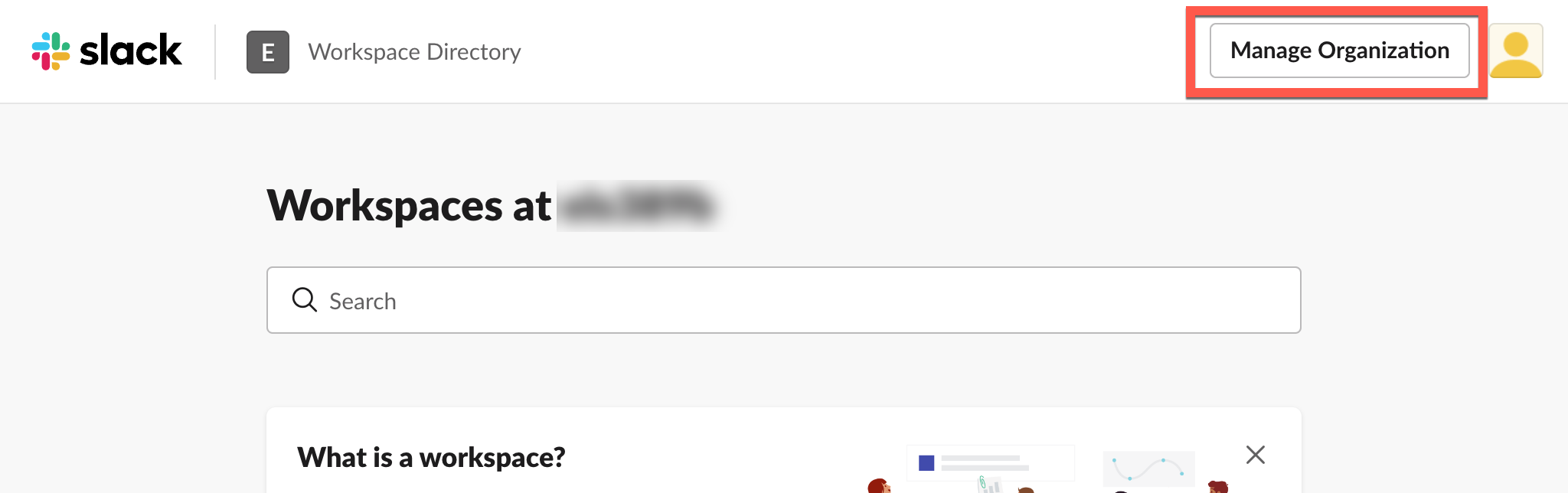
To manage a Slack Organization you must have the Slack Primary Org Owner role.
Then choose Integrations > Installed apps, find SaaS Manager in the list of installed apps, select the '...' icon and choose Add to more workspaces.
Slack will then show you a list of workspaces where the SaaS Manager app is not currently installed. Check the workspaces you want to use, and consider checking the Default for future workspaces checkbox.
Select Next to continue.
You will then be taken through a series of screens to confirm the permissions SaaS Manager requires. Select Next again to confirm these, then select I'm ready to add this app.
Select Add App.
Sending messages
Learn more about sending messages, in particular sending to private channels.
FAQs
How do I change the name of the 1Password SaaS Manager Slack bot?
- Right-click the app in Slack and choose View app details.
- Select Configuration (this opens the web UI).
- Scroll down to the Bot User section.
- Select Edit.
Why is the 1Password SaaS Manager Slack app not Slack approved?
Slack has had a policy of not accepting marketplace app submissions which request 'admin' scopes which are required for a number of Slack actions (in particular for Enterprise Grid but not exclusively so).
See https://api.slack.com/slack-marketplace/review-guide#scopes
The scopes requested are the minimum necessary for the service to function. My app does not circumvent Slack’s administrative or privacy controls and does not request extensive access to workspace data/other sensitive information (e.g. via
read,post,client,search:read,admin.*,search:read, user token*:history,triggers:*scopes).
The Slack submission process does not involve any kind of security review beyond checking that you have described why you're requesting the scopes you request and there is a QA test installing the app to check it broadly works.
For all of our OAuth integrations we describe the scopes needed and how they are used to be as transparent and clear with customers as possible.
Support
If you have any problems either connecting with Slack or using SaaS Manager please contact our support team. Just drop us an email at saasmanager@1password.com to start the conversation.
Comments
0 comments
Please sign in to leave a comment.