When you try to connect Datadog to 1Password SaaS Manager you will be asked for a region, API key and application key. This article shows you how to identify your Datadog region, and how to find and create the keys.
You must be an administrator in Datadog in order to connect with SaaS Manager.
What Datadog region should I select?
You can identify your Datadog region (also referred to as a Datadog site) from the URL you use to log in to Datadog.
| Region | URL |
|---|---|
| EU | https://app.datadoghq.eu |
| US | https://app.datadoghq.com |
| US3 | https://us3.datadoghq.com |
| US5 | https://us5.datadoghq.com |
| US1-FED | https://app.ddog-gov.com |
| AP1 | https://ap1.datadoghq.com |
| AP2 | https://ap2.datadoghq.com |
Creating an API Key
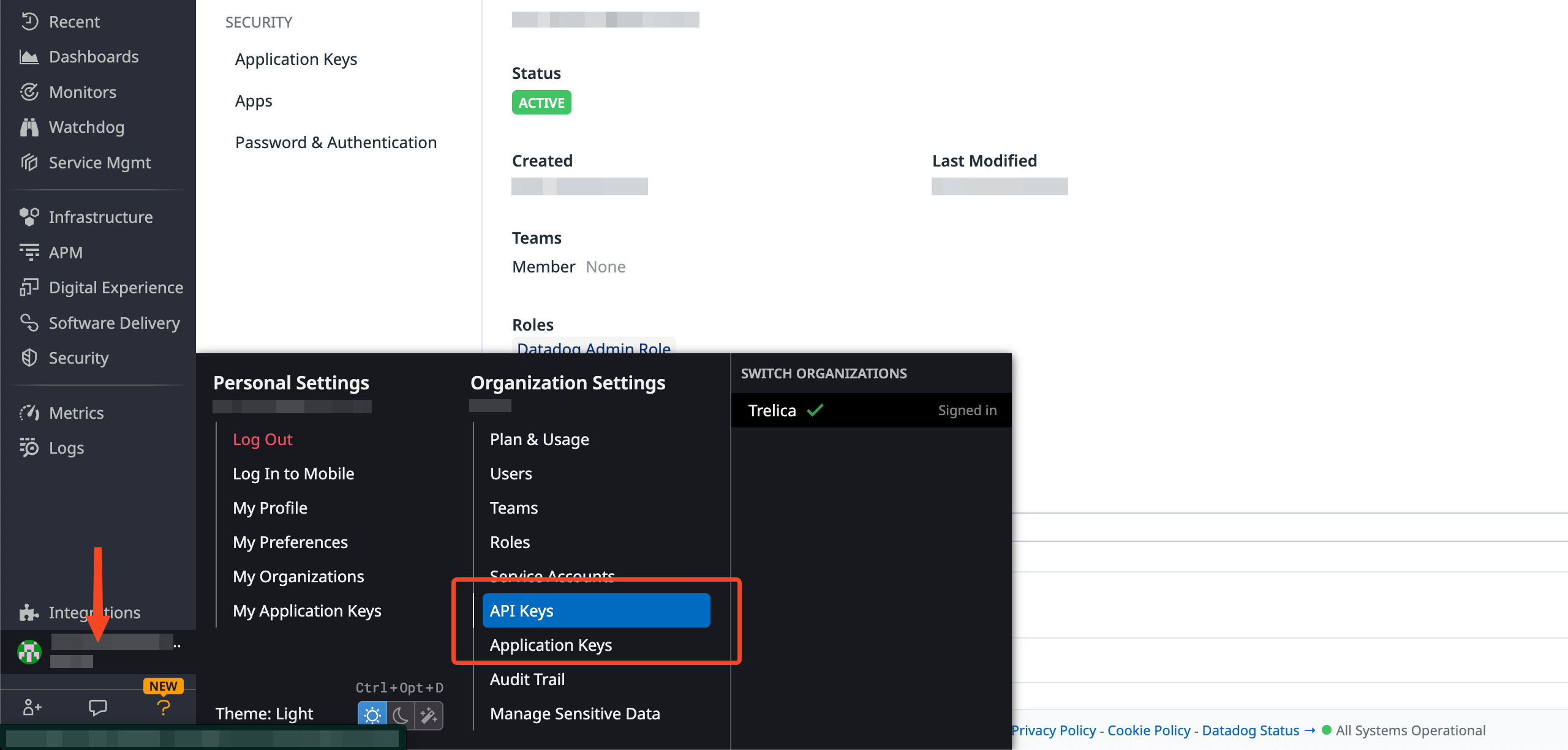
Login to Datadog, hover over your profile avatar and select API Keys under Organization settings.
Select API Keys and click New Key.
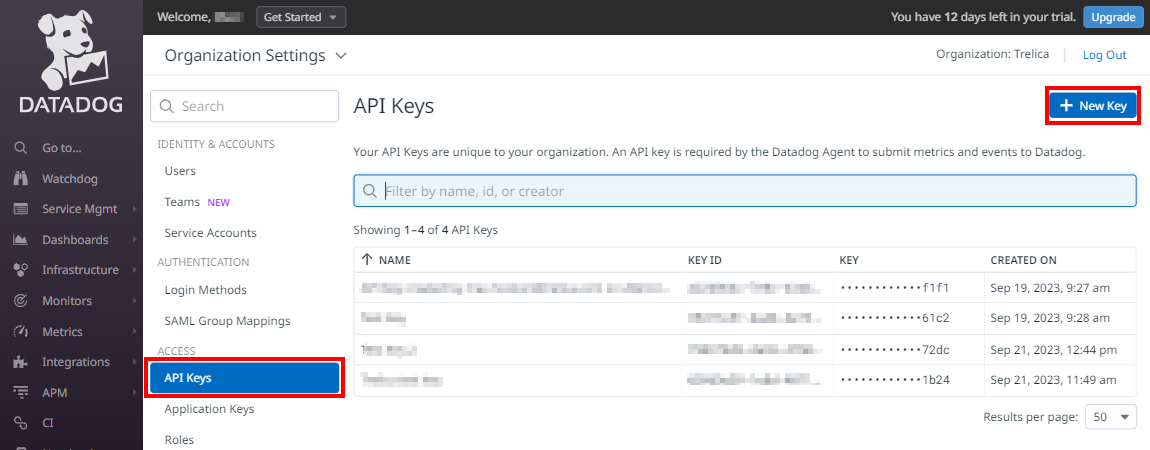
In the dialog that appears enter a name for the new API key, e.g. 1Password SaaS Manager and click Create Key.
Click Copy next to the key (not the Key ID) and save the API key to a safe place so that it can be used when connecting Datadog to SaaS Manager.
Creating an application key
Navigate to Organization Settings > Application Keys and click New Key.
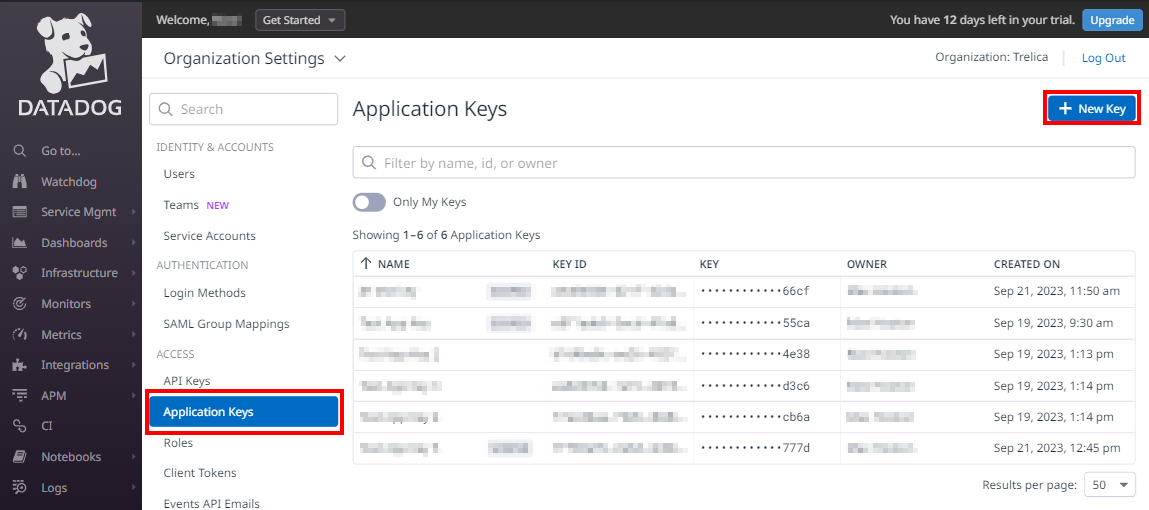
Enter a name for the new application key, e.g. 1Password SaaS Manager app key and click Create Key.
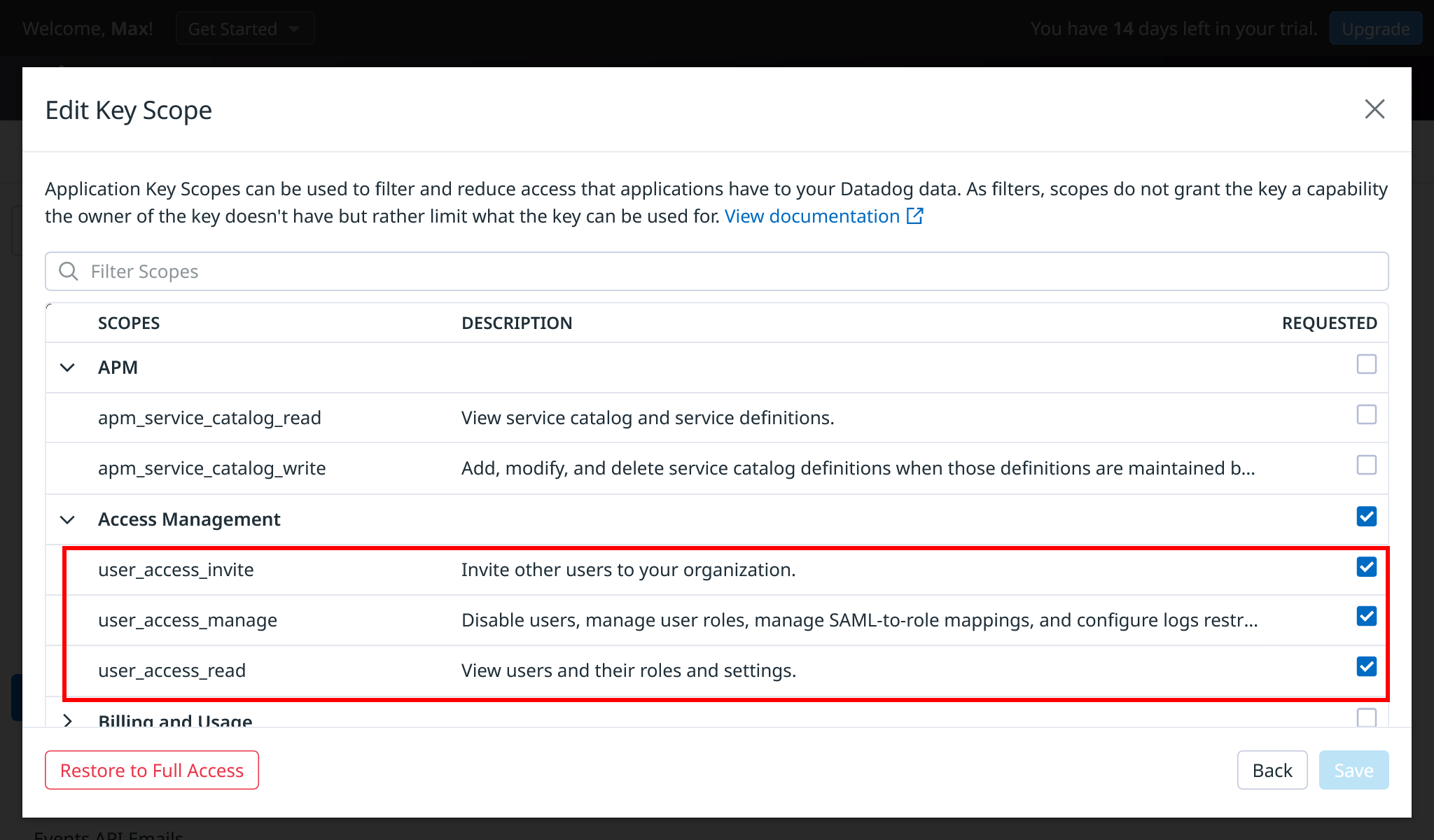
Click Edit under the Scope heading to assign the necessary scopes to the application key.
Select the appropriate scopes from the following list according to the integration features you would like to enable and then click Save:
-
user_access_readis required to use the integration. -
user_access_inviteis required for the provisioning feature. -
user_access_manageis required for the provisioning and the deprovisioning feature.
Select Copy beside the key (not the Key ID) and save the Application Key to a safe place so that it can be used when connecting Datadog to SaaS Manager.
Comments
0 comments
Please sign in to leave a comment.