Connecting to OneLogin will let 1Password SaaS Manager read applications you have configured and users assigned to them. Optionally you can also enable deprovisioning to allow deactivation or deletion of OneLogin users via SaaS Manager.
Connecting to OneLogin
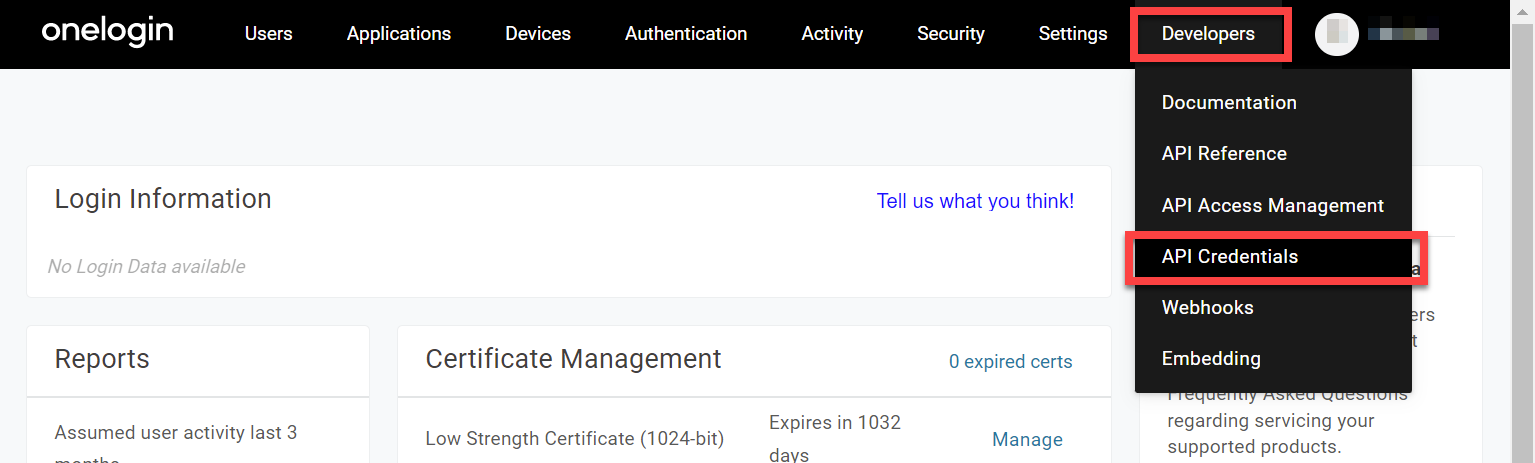
Go to Administration and then choose Developers and API Credentials:
Click New Credential in the API Access page:

Enter a name (e.g. SaaS Manager - Integration) and choose the appropriate access scope:
- if you intend to use provisioning or deprovisioning you will need to select Manage all
- otherwise, select Read all
Click Save.
The Client ID and Client Secret will be shown. Cut and paste these into SaaS Manager before clicking Done.
OneLogin user statuses in SaaS Manager
The Deactivated status in SaaS Manager means that a user does not have access and is not being paid for. Suspended means that the user does not have access (likely temporarily) and the seat is being paid for.
| OneLogin status | SaaS Manager status |
|---|---|
| Active | Active |
| Unactivated | Invited |
| Suspended | Deactivated |
| Awaiting password reset | Suspended |
| Locked | Suspended |
| Password expired | Suspended |
| Pending | Suspended |
Comments
0 comments
Please sign in to leave a comment.