Login to Lark and go to https://open.larksuite.com/
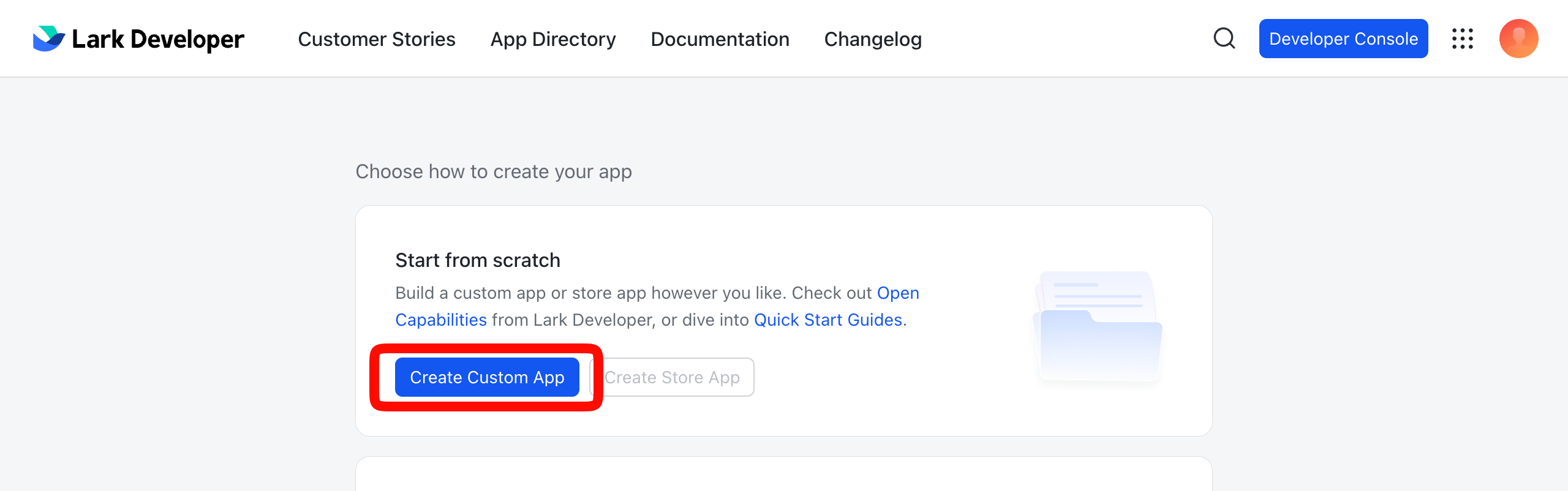
Click Developer Console and Create Custom App:
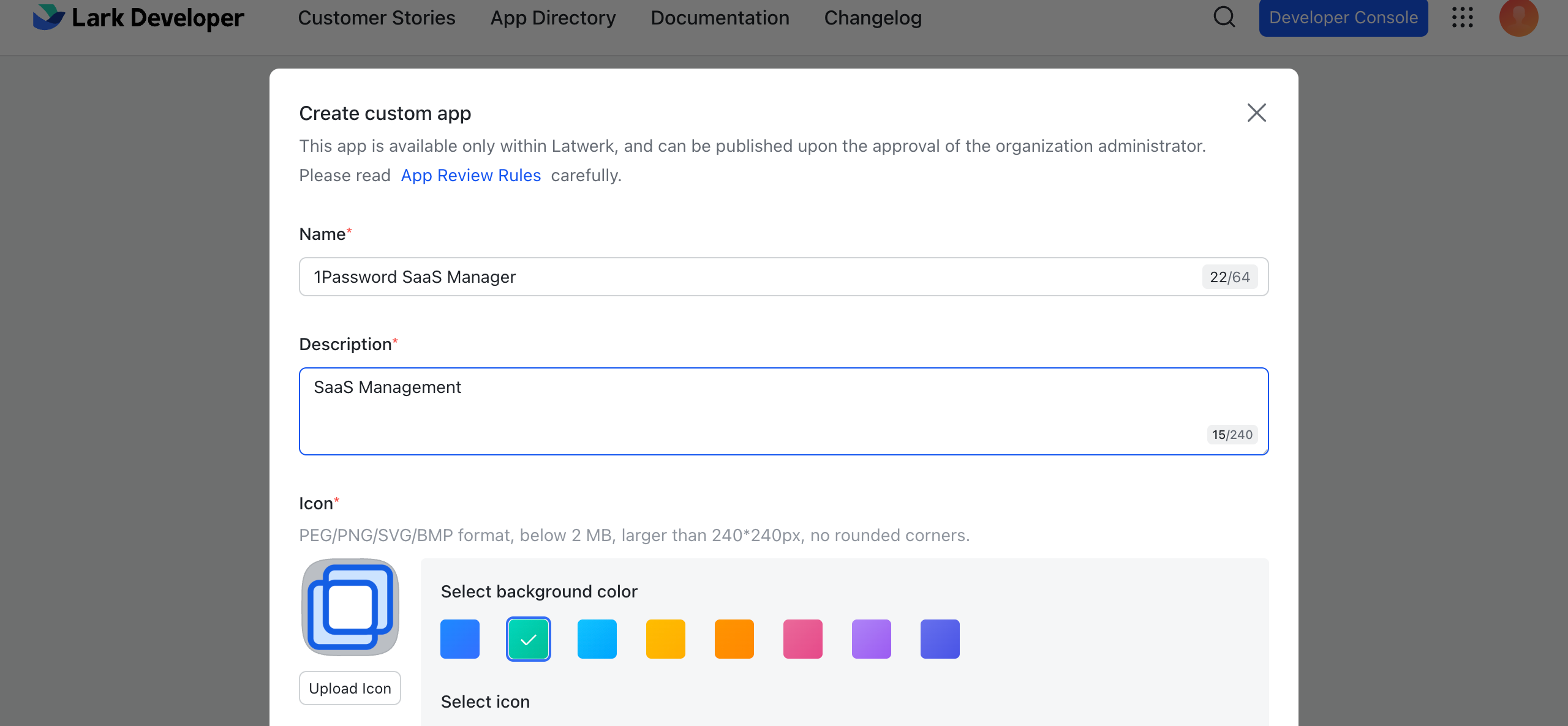
Enter a Name, Description and choose an Icon.
Click Create
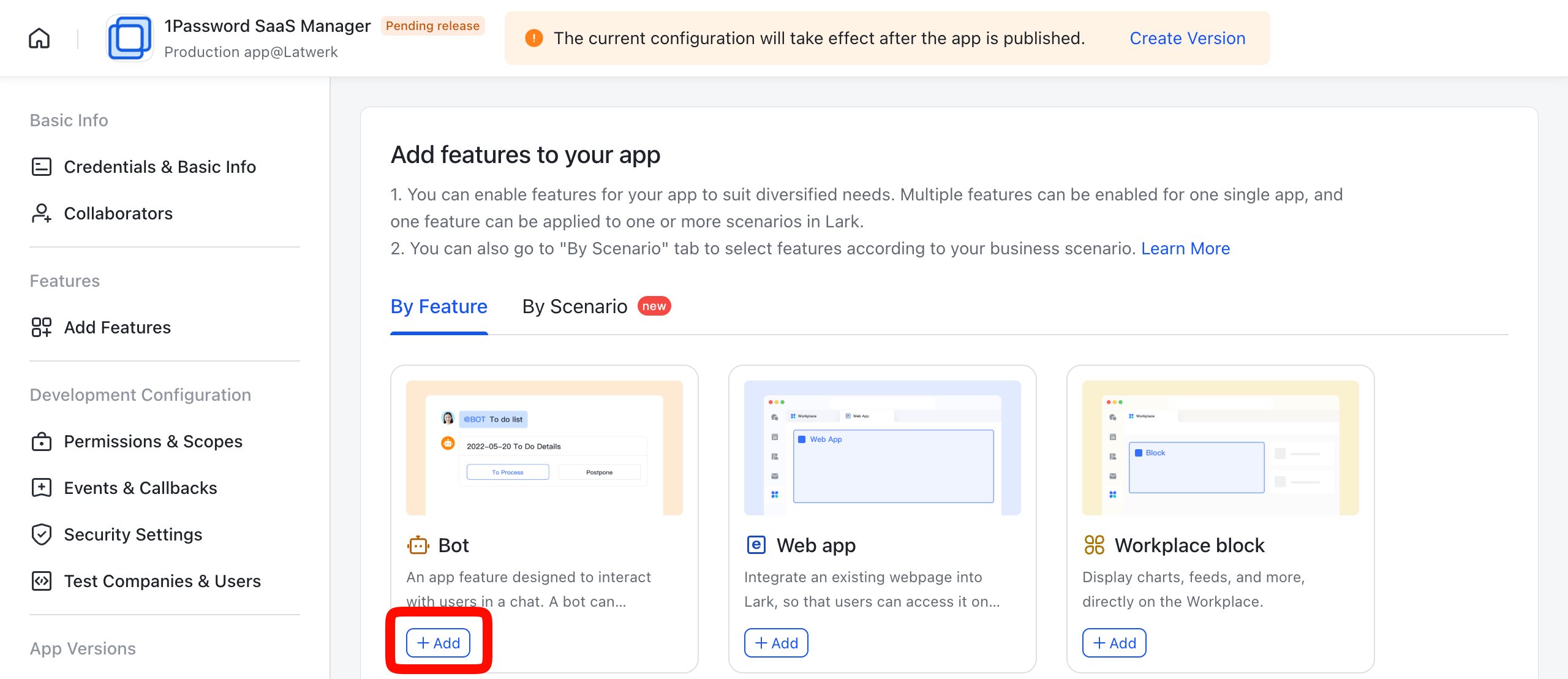
When prompted to Add features to your app click Add on the Bot feature:
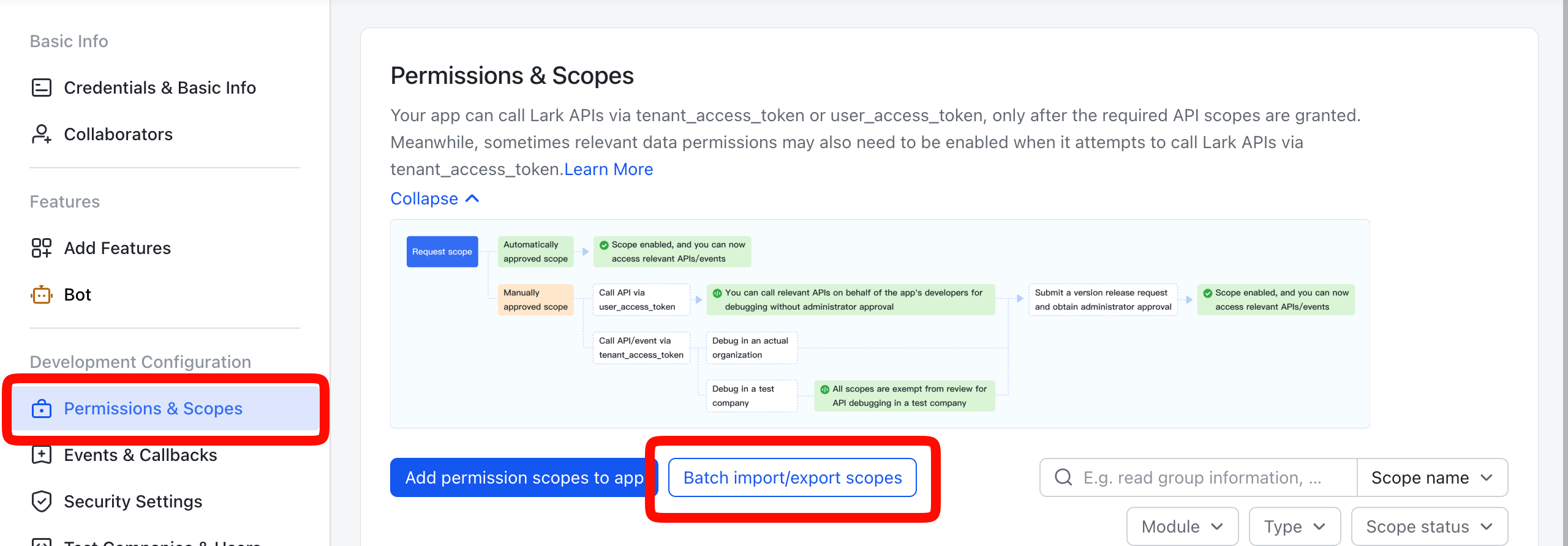
In the Bot page that opens, click Permissions & Scopes and click Batch import/export scopes:
In the Import tab paste the following into the JSON editor:
{
  "scopes": {
    "tenant": [
    "contact:contact.base:readonly",
        "contact:department.base:readonly",
        "contact:department.organize:readonly",
        "contact:group:readonly",
        "contact:job_title:readonly",
        "contact:role:readonly",
        "contact:user.assign_info:read",
        "contact:user.base:readonly",
        "contact:user.department:readonly",
        "contact:user.email:readonly",
        "contact:user.employee:readonly",
        "contact:user.employee_id:readonly",
        "contact:user.id:readonly",
        "im:chat:readonly",
        "im:message",
        "im:message.group_at_msg:readonly",
        "im:message:send_as_bot"
    ],
    "user": [
    ]
  }
}
Click Next, Review New Scopes.
If the button is greyed out then there's likely an error in the JSON you copied so double check the syntax.
Review the new scopes in the dialog and click Add.
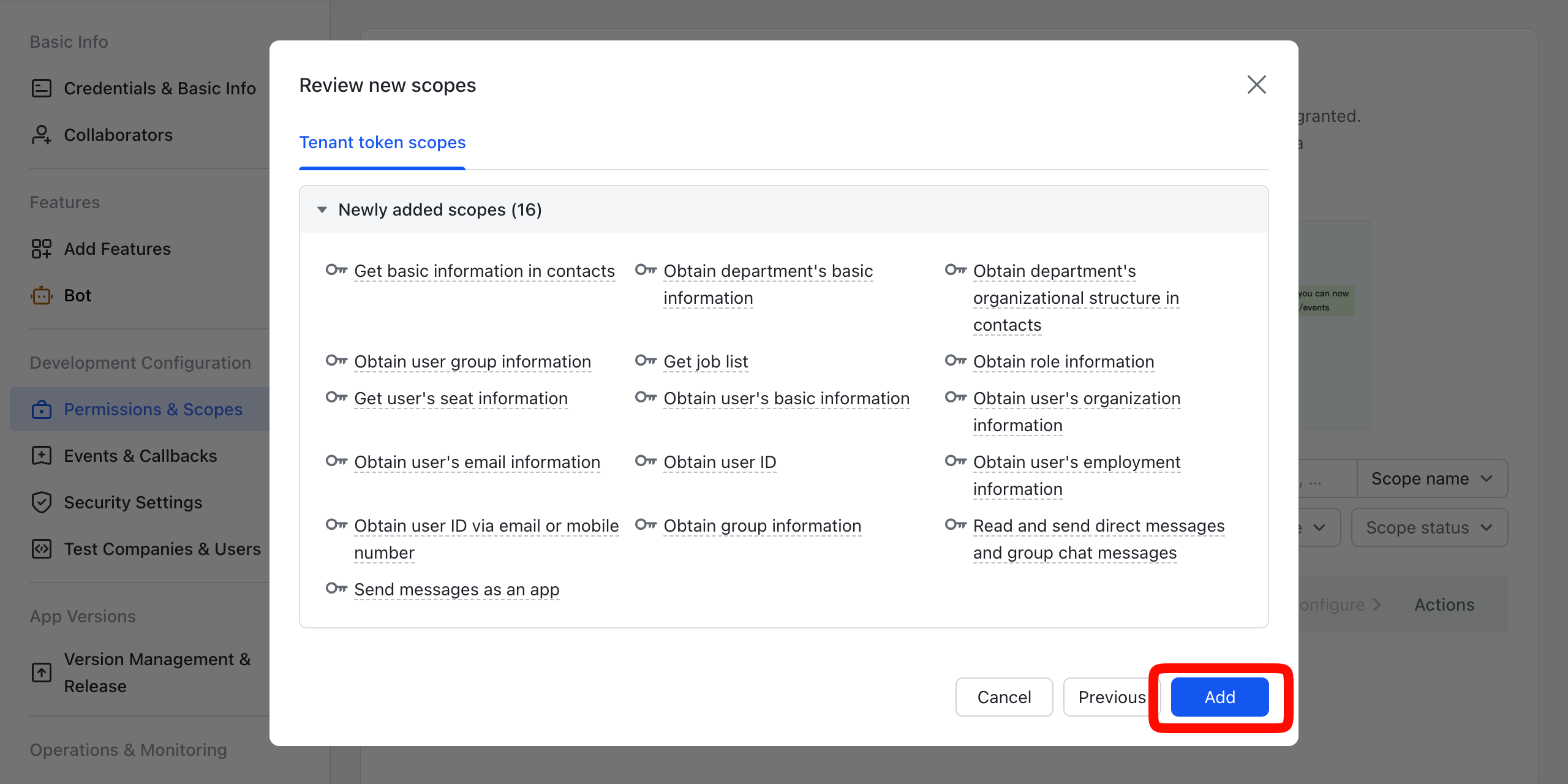
On the Accessible data range for tenant token scopes we recommend leaving it with the default, but if you have special requirements you can Configure an alternative scope to "Identical to the availability of app".
Click Confirm.
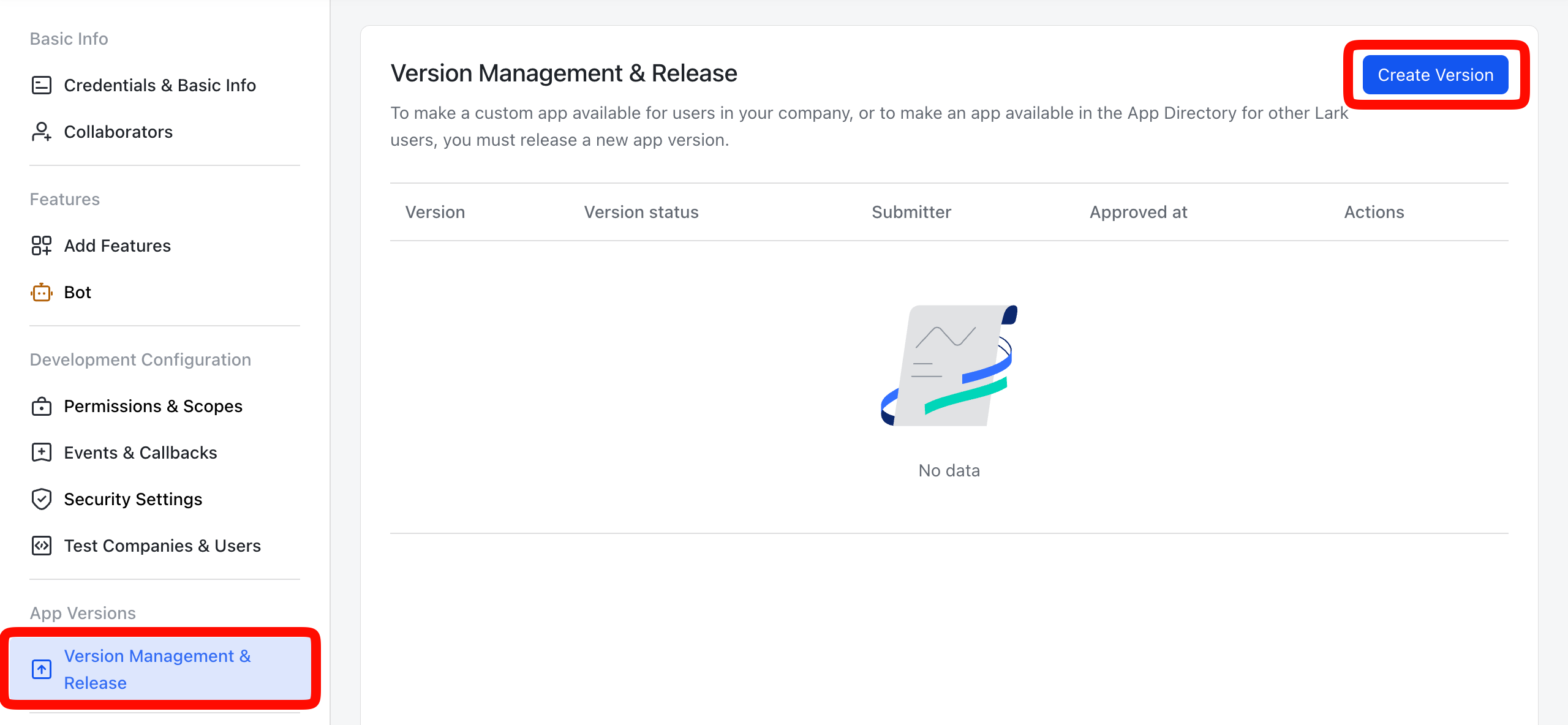
Go to Version Management & Release on the left-hand menu and clikck Create Version:
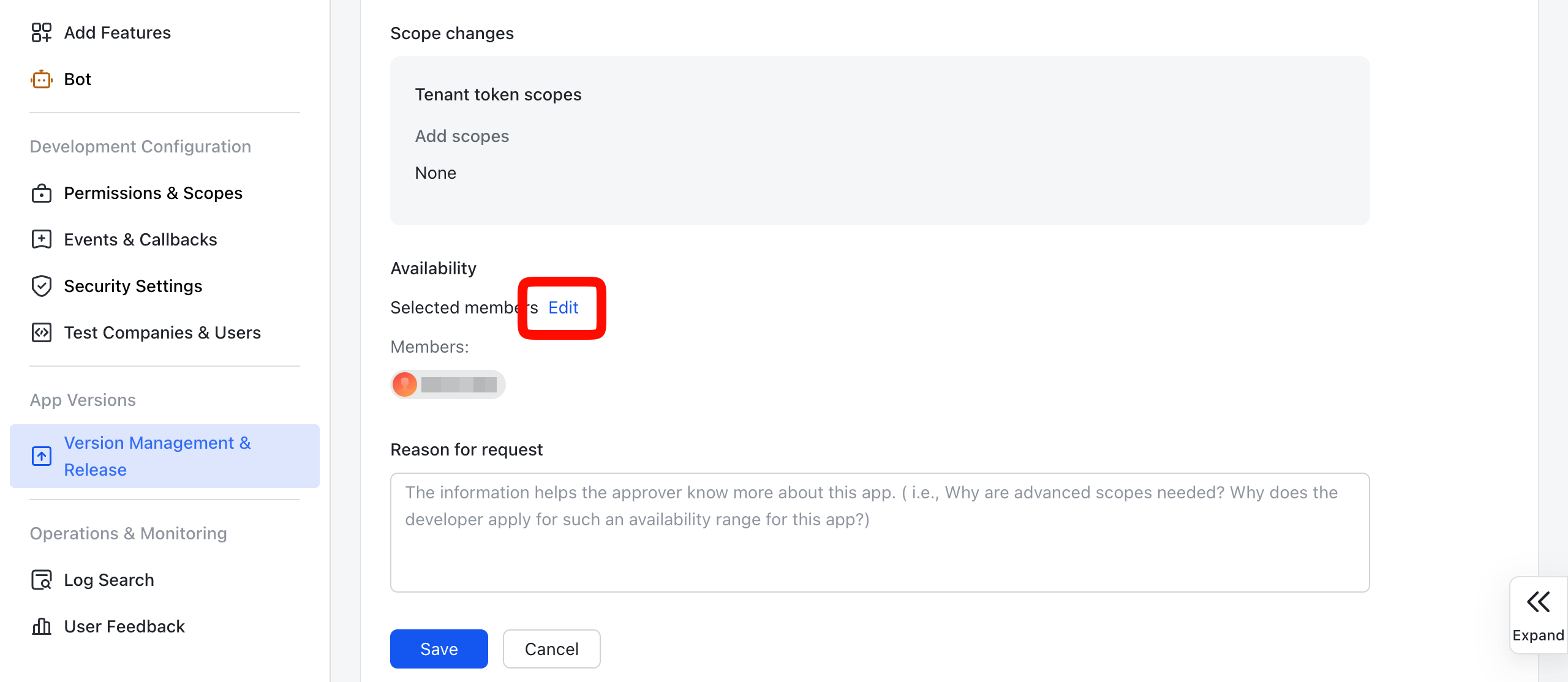
Scroll down to the Availability section and click Edit.
Change this to All members and click Done: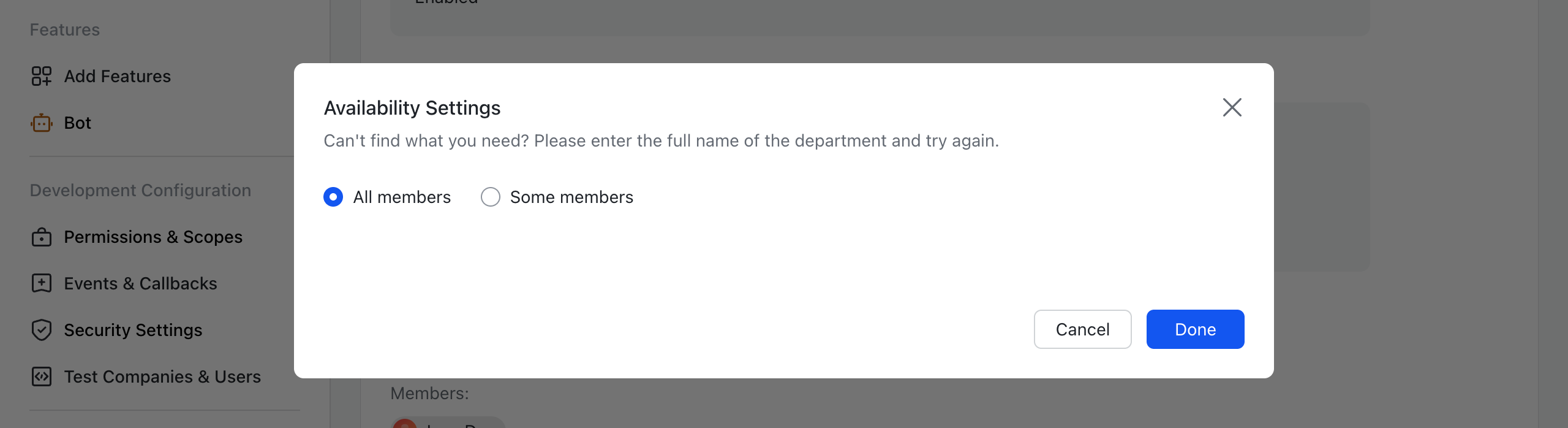
Click Save and then confirm that you want to Submit for release.
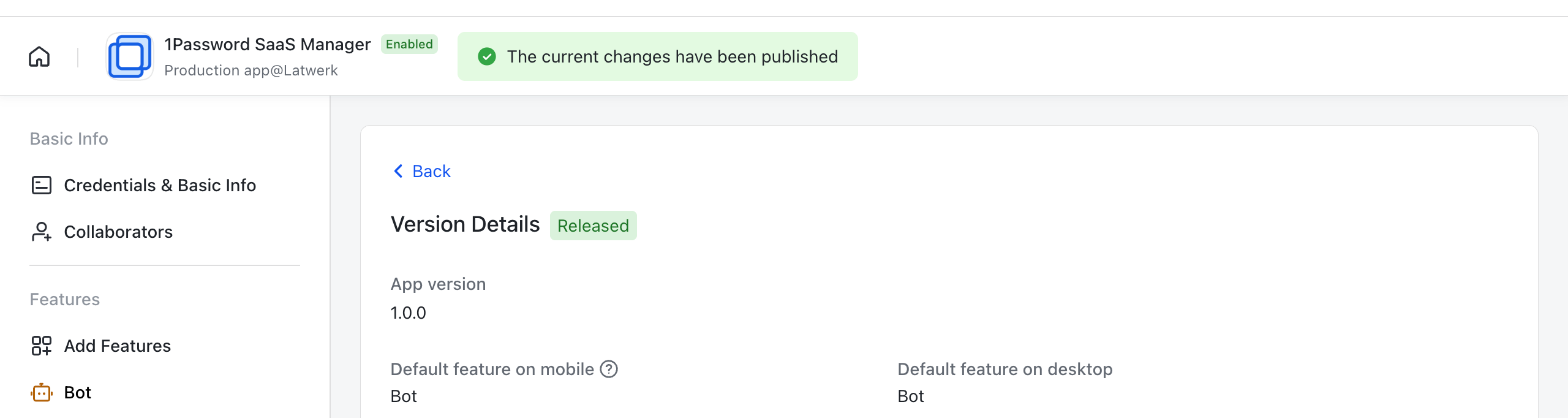
The Version Details should now show Released.
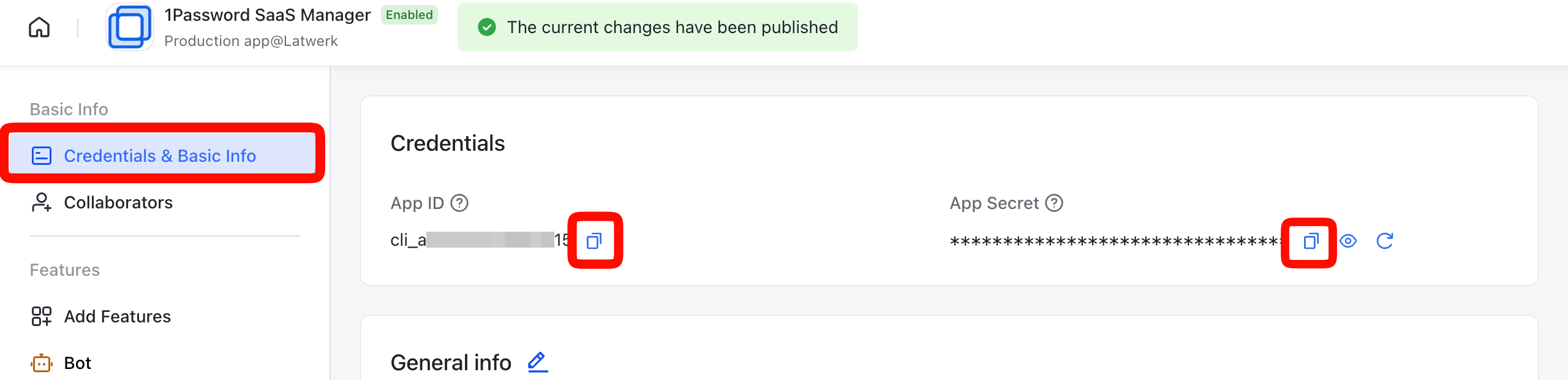
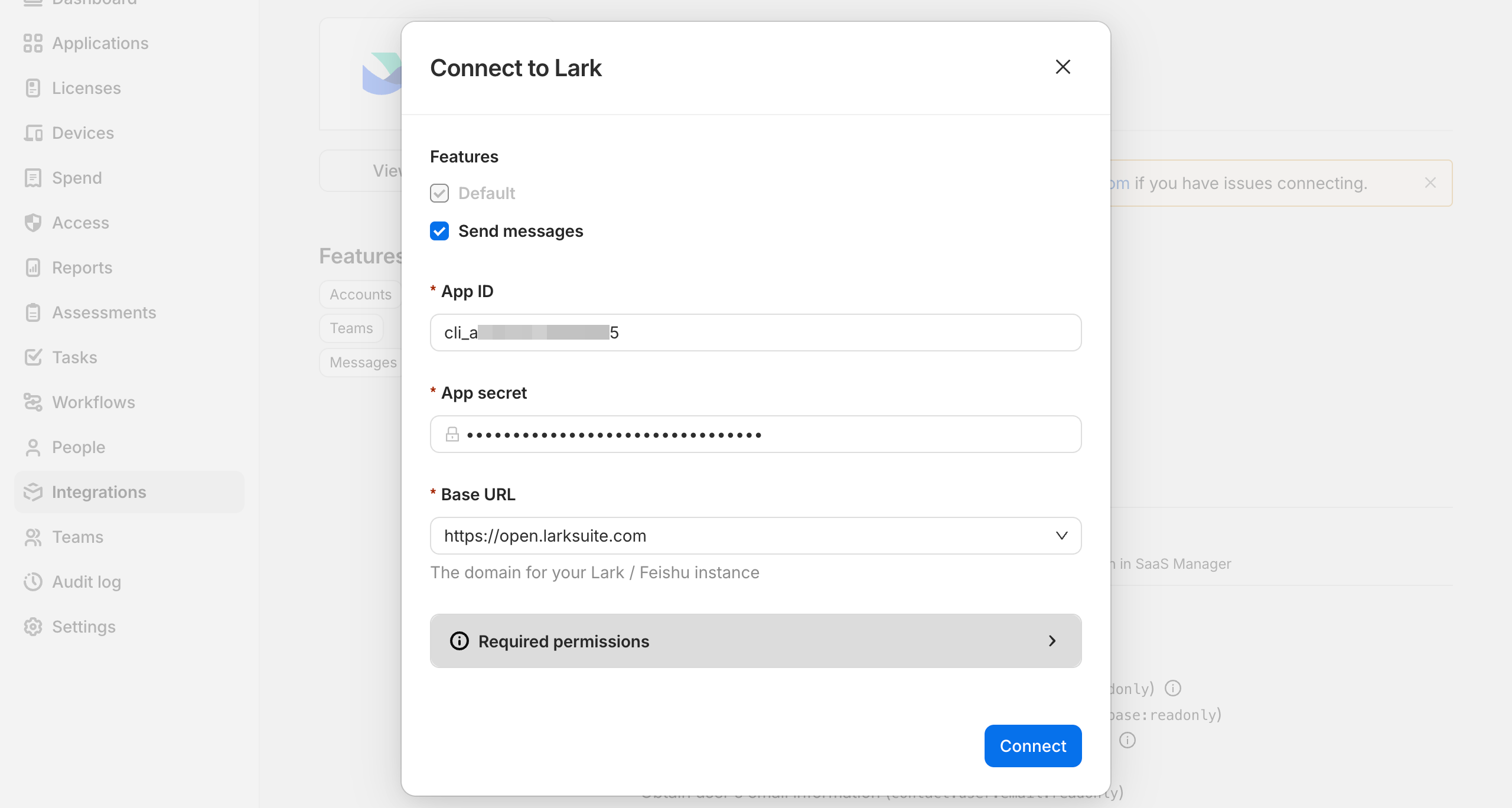
Finally go the Credentials & Basic Info and copy the App ID and App Secret and paste them in to the connection dialog in SaaS Manager:
Click Connect when done.
Comments
0 comments
Please sign in to leave a comment.