Note: 1Password SaaS Manager was previously named Trelica. Some commands and integrations still use or refer to Trelica. Follow directions as written to avoid errors.
Assigning AWS permissions
Tableau’s S3 connector uses AWS access-key-based authentication and doesn’t support assuming an IAM role. Permissions must be attached directly to the IAM user that owns the access key.
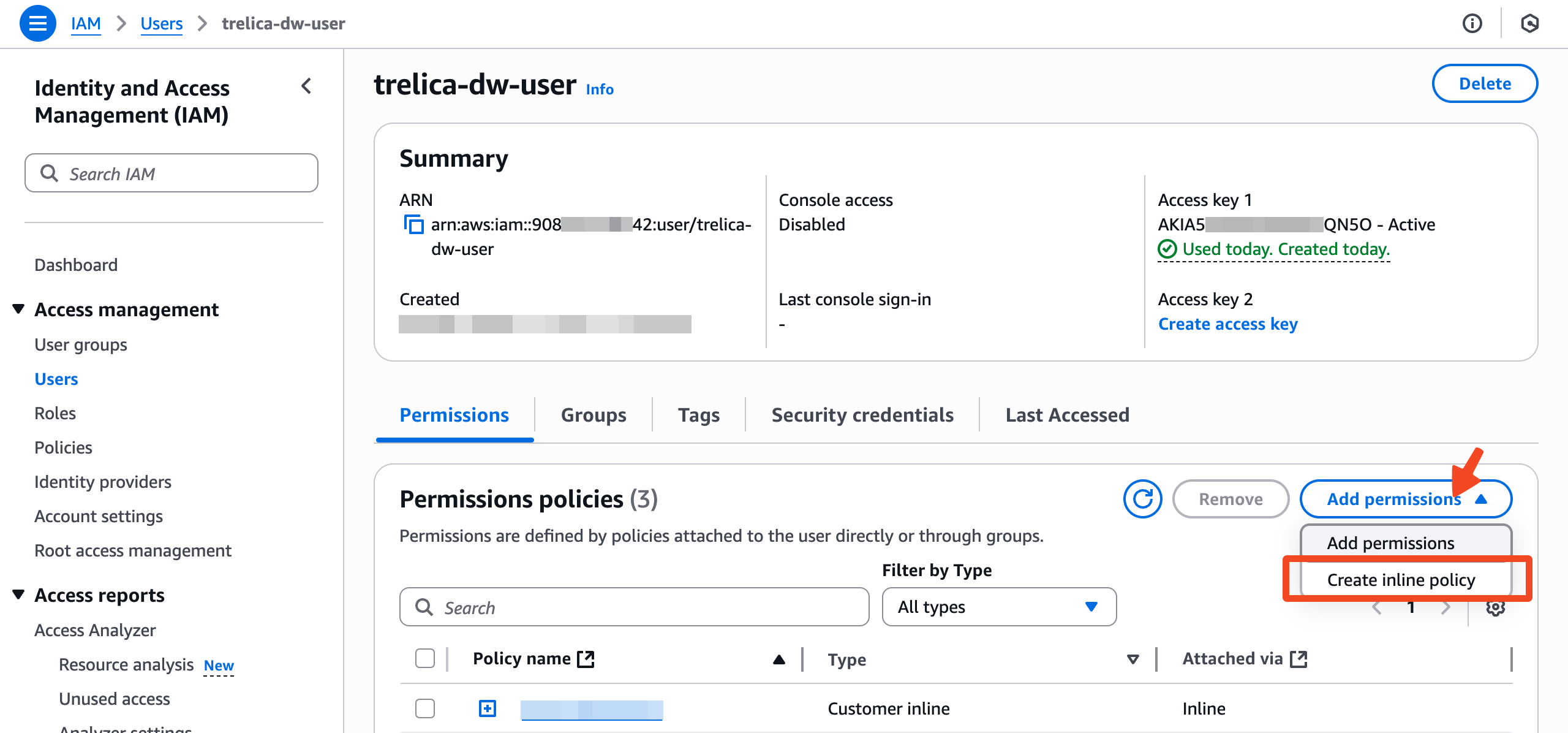
To do this you will need to add an Inline policy to the user who is reading the S3 bucket.
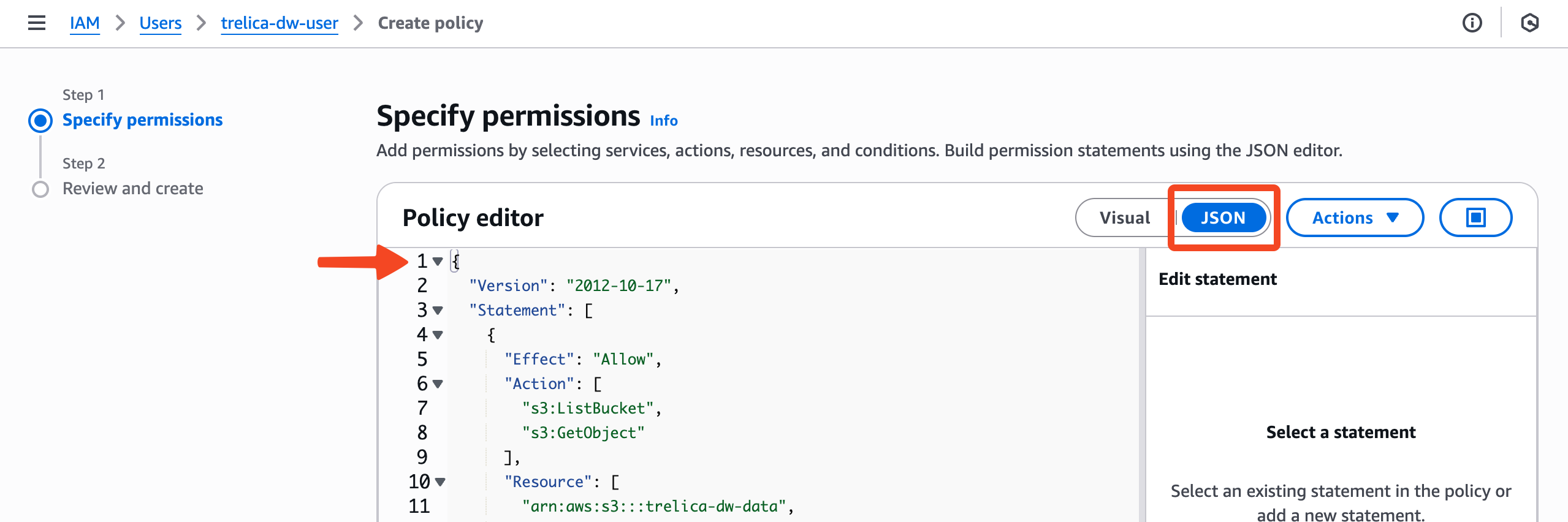
Select JSON and paste in the following policy to the editor:
{
  "Version": "2012-10-17",
  "Statement": [
    {
      "Effect": "Allow",
      "Action": [
        "s3:ListBucket",
        "s3:GetObject"
      ],
      "Resource": [
        "arn:aws:s3:::trelica-dw-data",
        "arn:aws:s3:::trelica-dw-data/*"
      ]
    }
  ]
}
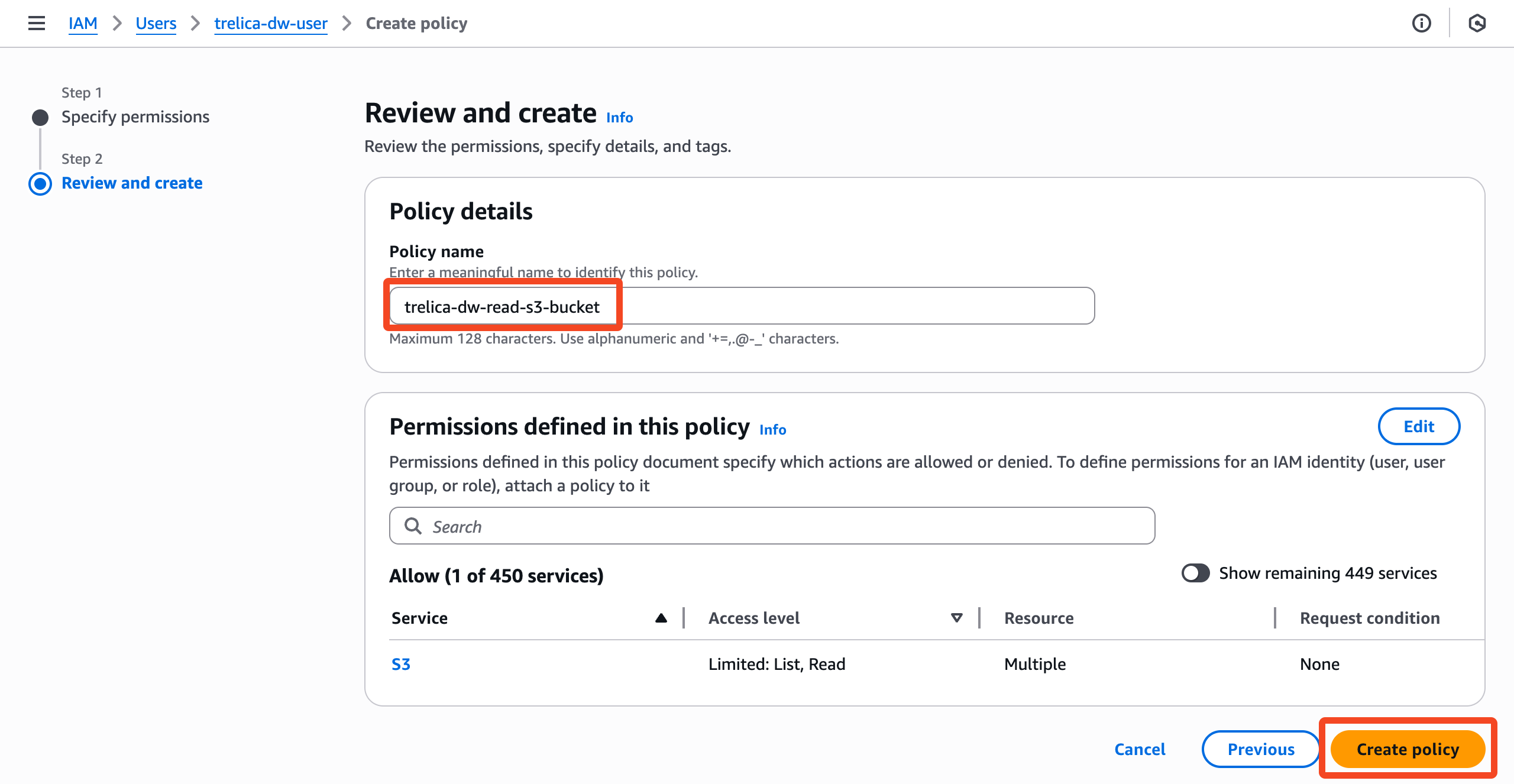
Click Next at the bottom of the page.
Finally, assign the policy a name, e.g. "trelica-dw-read-s3-bucket" and click Create policy.
Connecting from Tableau
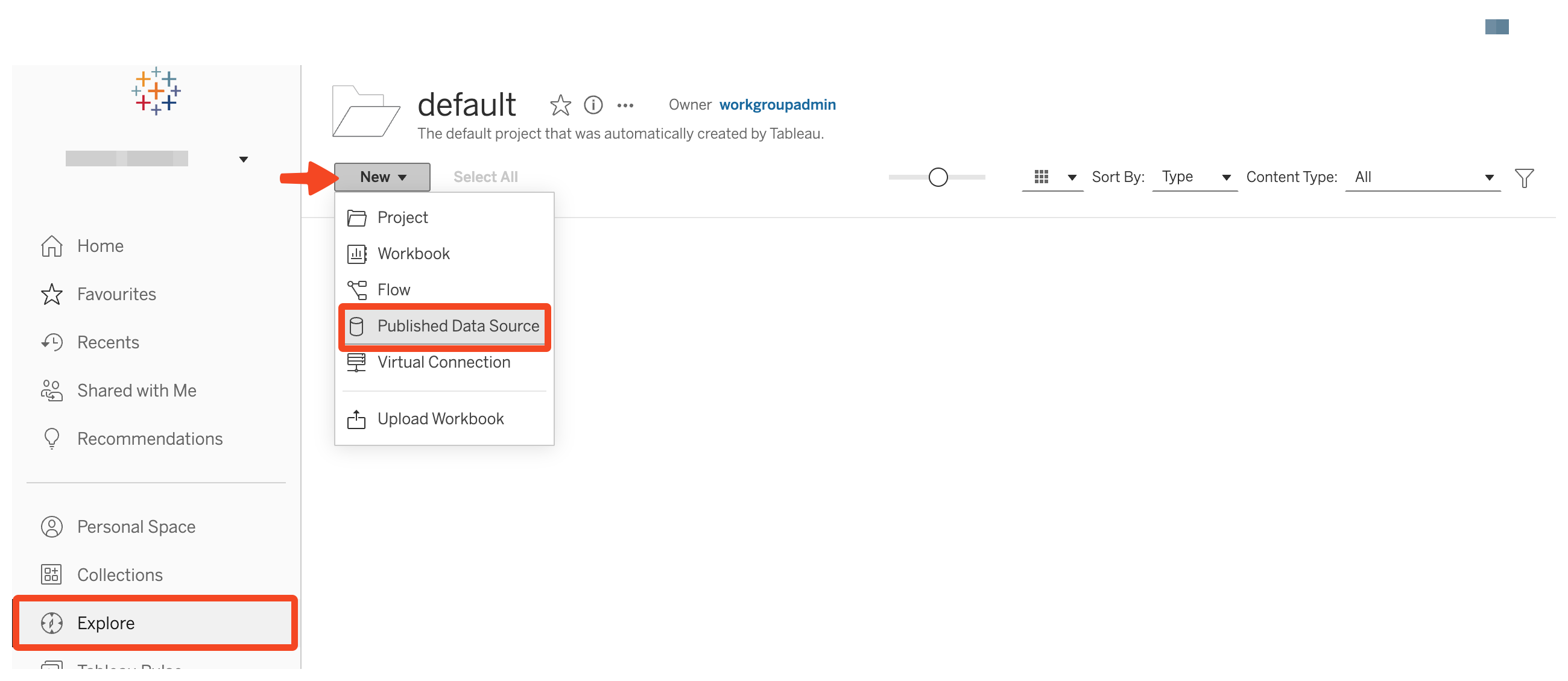
Open a Tableau project and choose New and pick Published Data Source:
In the Connect to data dialog, select the Connectors tab and click on Amazon S3 in the list.
Enter the details of your S3 bucket and click Sign in:
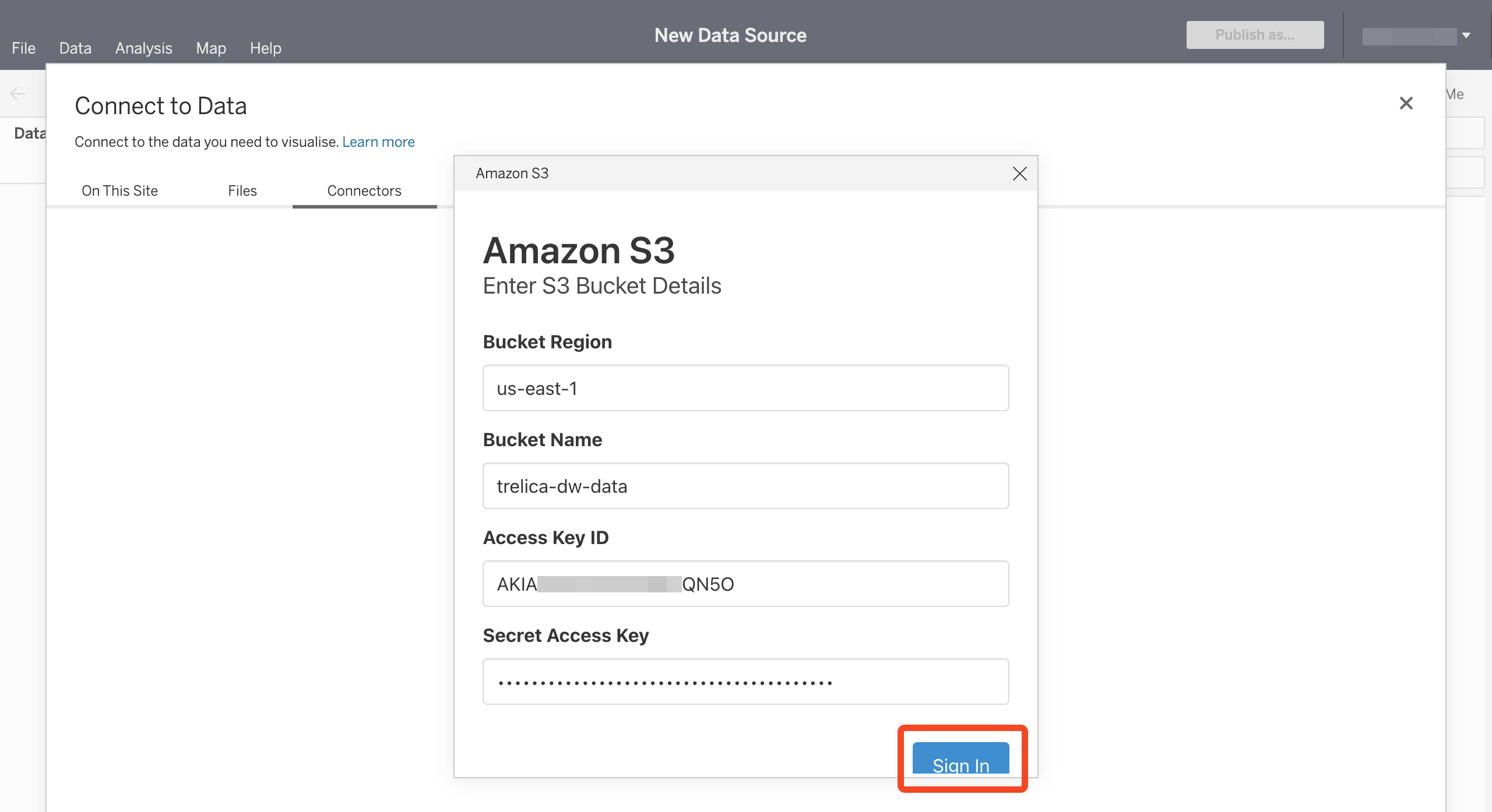
After a few seconds the connection should be established and you can click through the bucket folder hierarchy.
Select one of the parquet files:
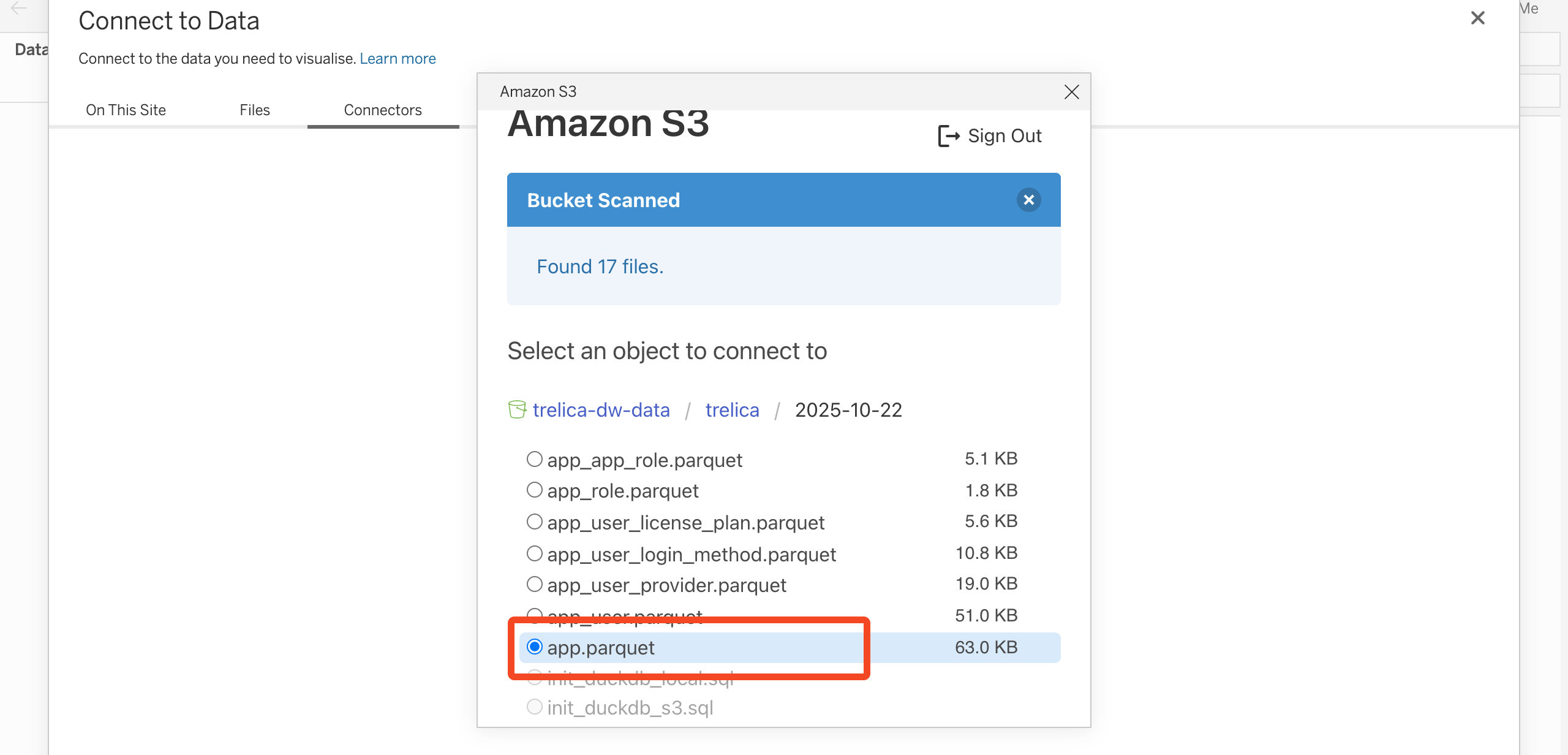
Scroll down the dialog and click Connect.
Tableau will then show all the files in the folder on the left-hand side. Drag these out one by one:
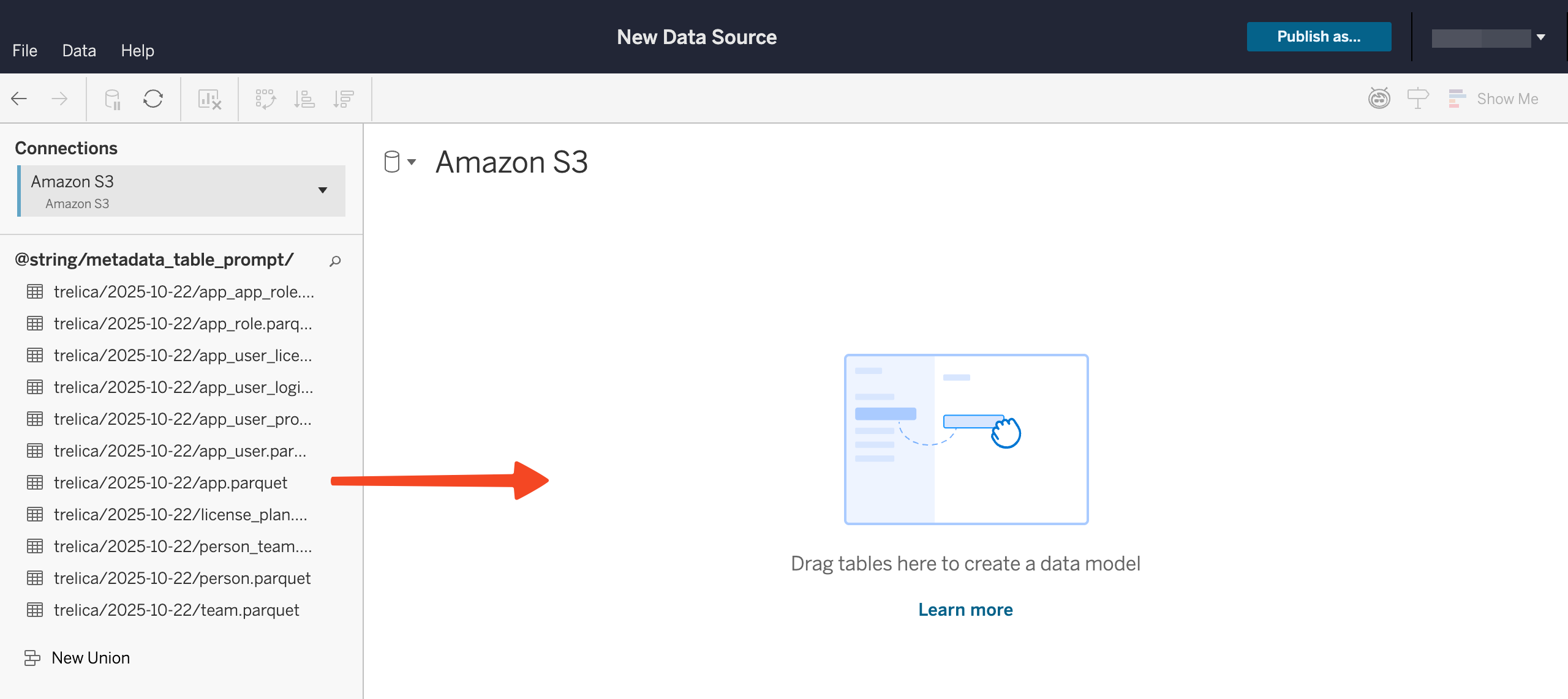
As you drag a related table you can choose the fields that define the relationships between the tables:
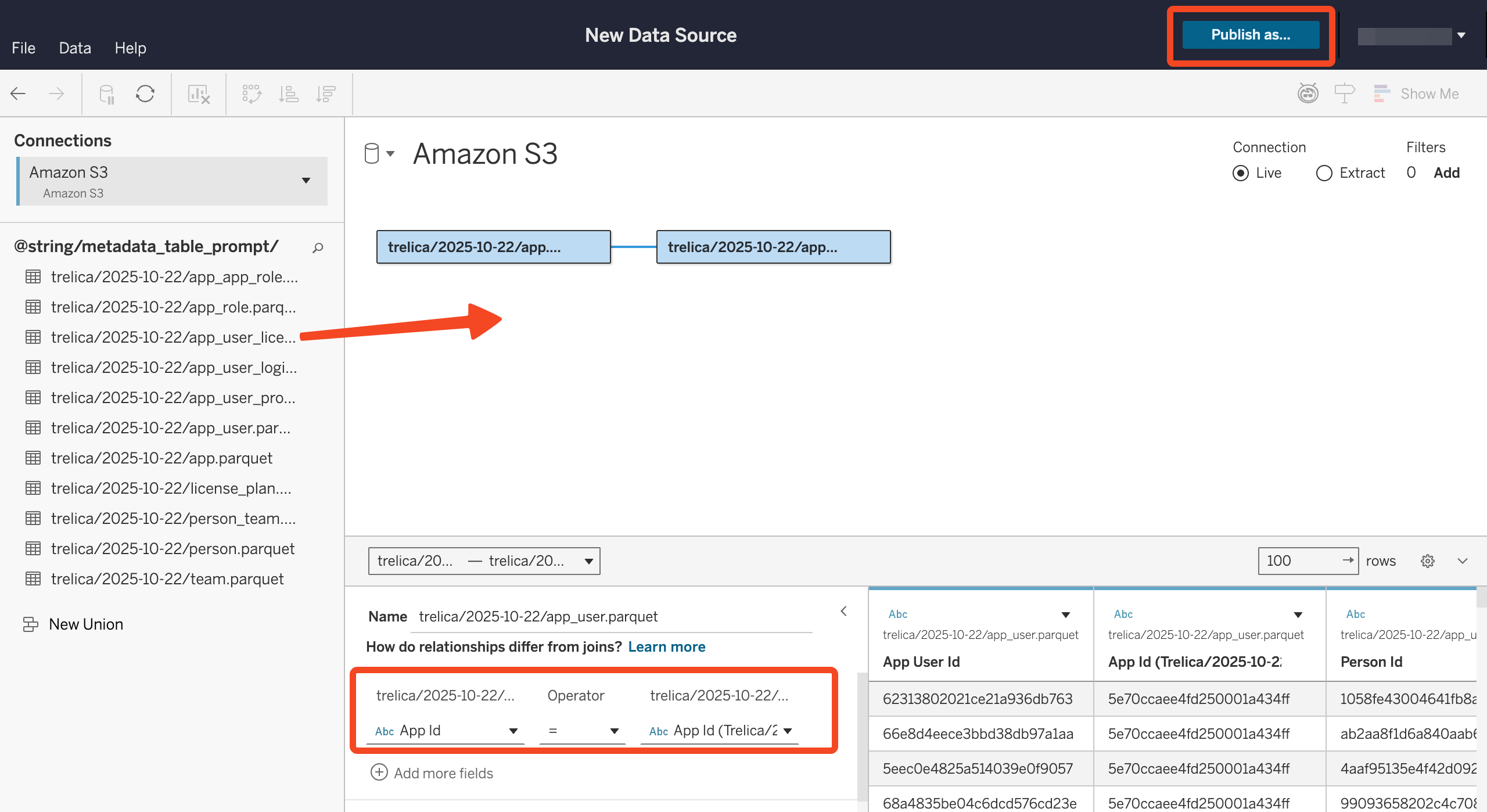
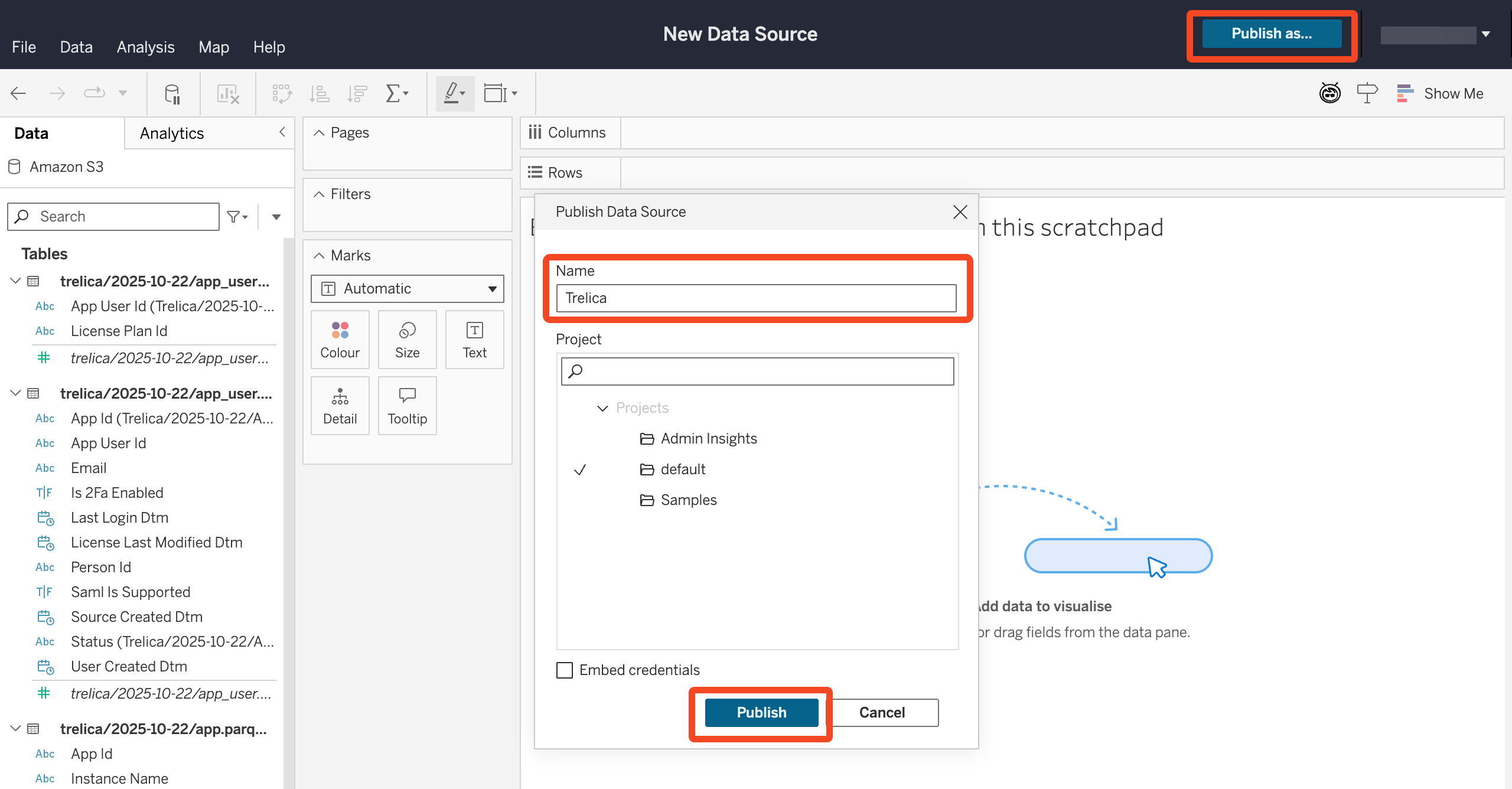
Click Publish as... when you are ready.
Enter a Name for your data-set and click Publish:
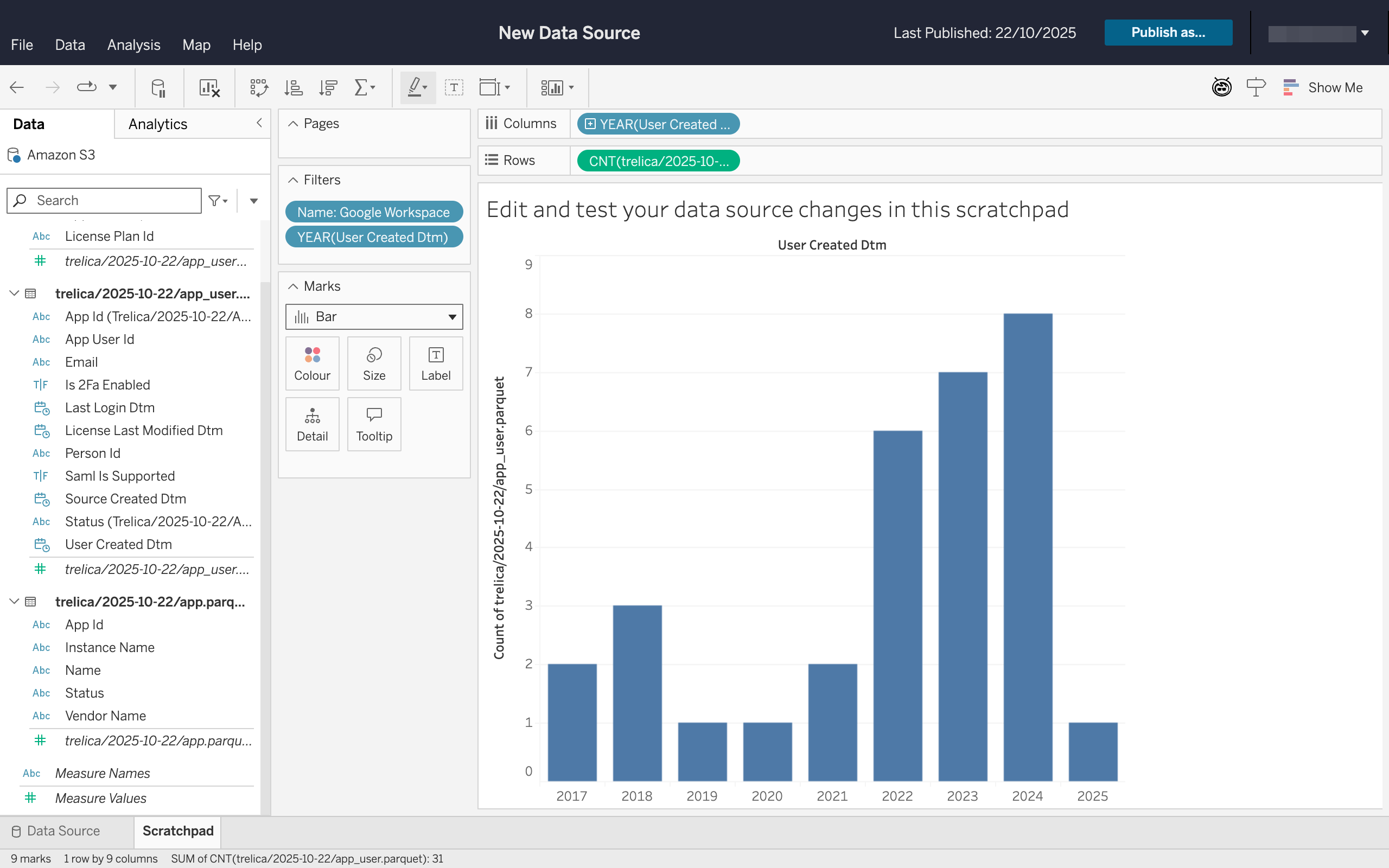
You can now use your data set to build analytics and reports:
By accessing or using 1Password Developer Tools, you agree to the API and SDK Terms of Service.
Comments
0 comments
Please sign in to leave a comment.