Creating a client role
To use the API, you need to create an API client role, which sets which parts of the API can be accessed.
To create an API client role, go to Workspace Admin > API clients > Client roles
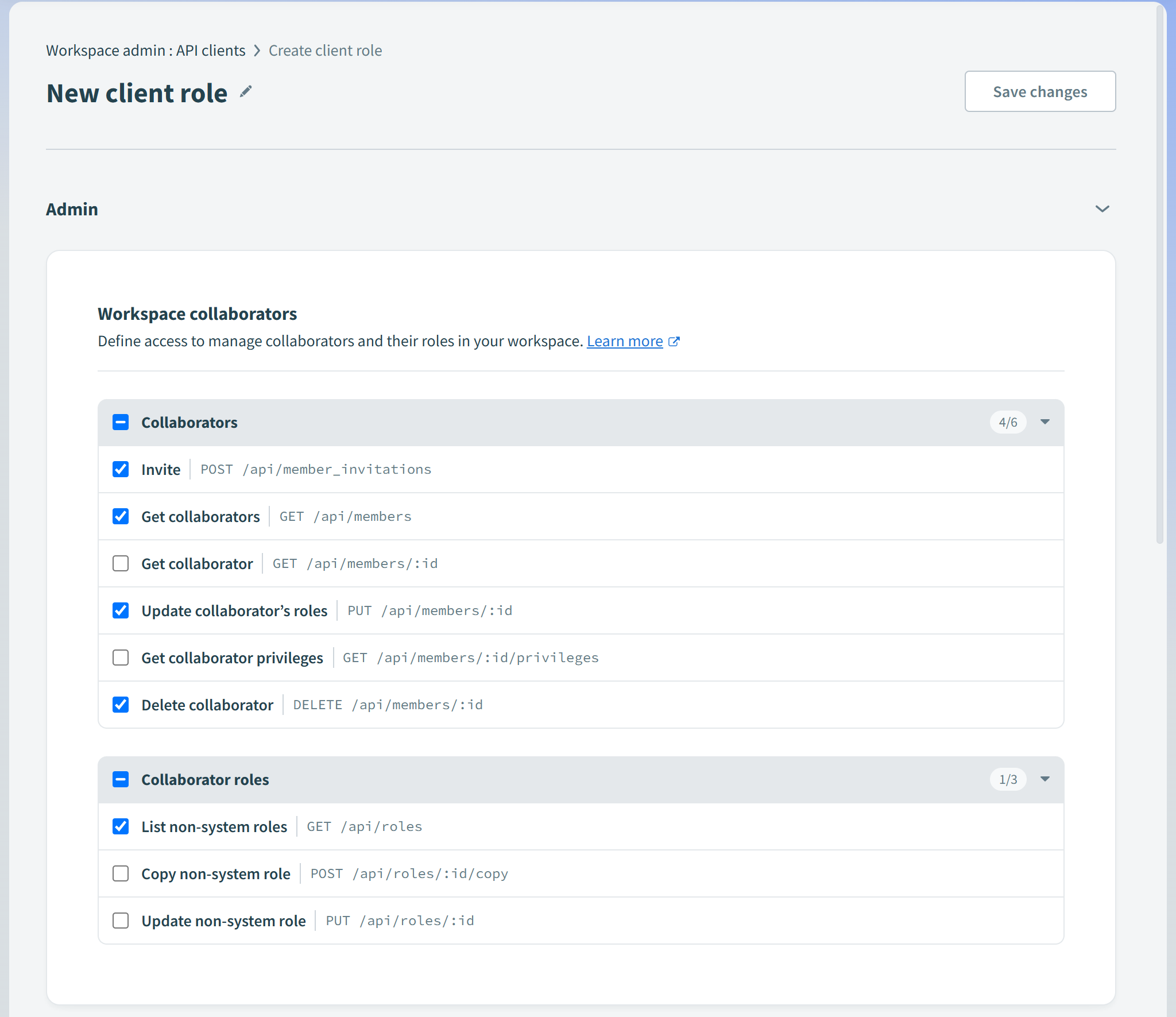
Click Add client role, give the client role a name such as '1Password SaaS Manager role', and then go to the Admin section, and check:
- Collaborators
- Invite
- Get collaborators
- Update collaborator's roles
- Delete collaborator
- Collaborator roles
- List non-system roles
Creating an API client
Once you have created a client role, you can create an API key by going to Workspace Admin > API clients > API clients.
Go to Create API client, and give it a name, such as 'SaaS Manager client'.
Select the new client role you created from the Client role dropdown.
Leave Project access on the default All projects.
Click Create client, you will be given an API token, this will only be displayed once, so make sure it is saved somewhere safe, but secure.
Connecting
In SaaS Manager, go to Integrations, find Workato, and click Connect.
Select the correct Base URL from the dropdown, this can be found by checking the URL you use to access Workato.
Copy the generated API key into the API key field and click Connect
Comments
0 comments
Please sign in to leave a comment.