The Spanning integration works for both Google Workspace and Microsoft 365.
Google Workspace
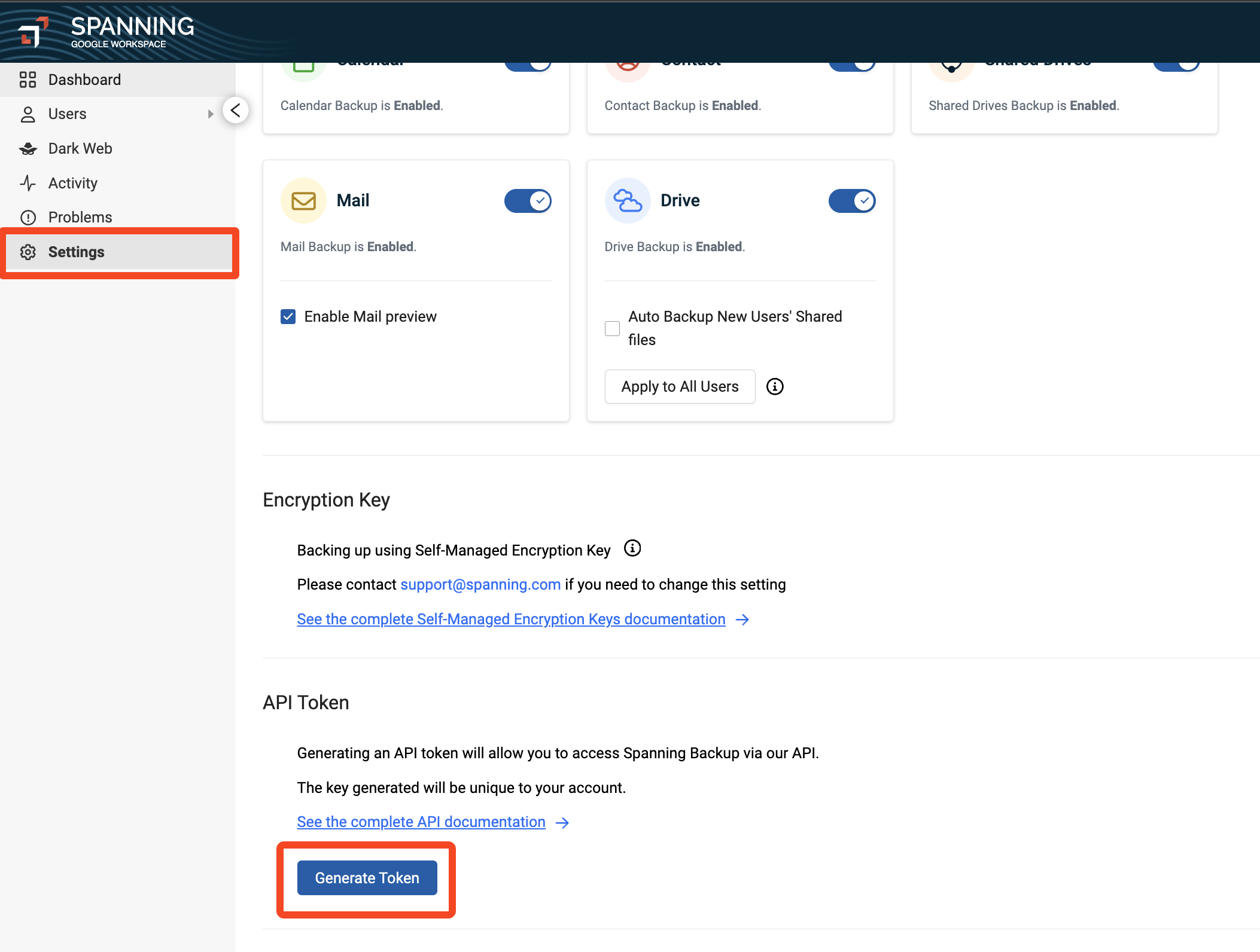
- Log into Spanning Backup as an admin user.
- Click Settings
- Click on the Backup & Security tab
- Scroll down to API Token and click Generate API Token.
Microsoft 365
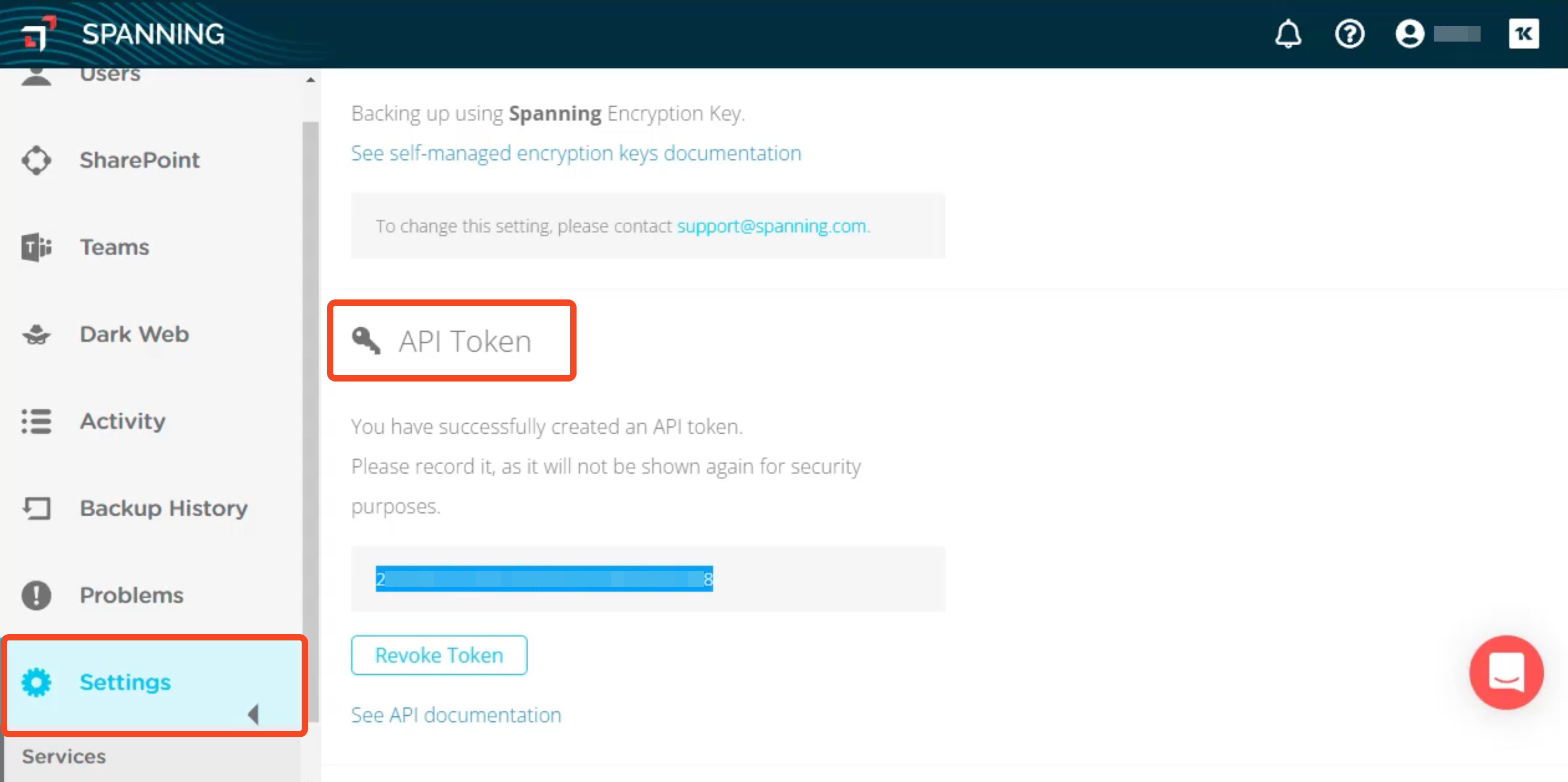
- Log into Spanning as an admin user at https://o365.spanningbackup.com
- Go to the Settings page
- Scroll down and click Generate token
- Copy and save the token
Licences
- Standard user licenses are independent and unique from archived user licenses. These licenses are tracked separately and purchased separately.
- When an archived license is applied, the user's standard license becomes available for application to another user.
- When a Spanning license is unassigned, the user's backup data is removed permanently after 60 days.
- If a standard license is reapplied within this 60-day period, backups resume and data is preserved based on the organization's current retention settings. (The next backup could take longer than usual, depending on how long the user was unlicensed and the rate of changed data.)
- If an archived license is reapplied within this 60-day period, data is preserved but no new backups are run.
- Standard licenses cannot be "converted" to archived licenses in the Spanning Backup UI. Please contact your Spanning Account Manager for more information if you have a significant volume of deactivated users to manage.
For Microsoft 365, Shared Mailboxes do not incur a direct license fee. On legacy plans the entitlement is one Shared Mailbox license per normal user license. On newer plans there are no restrictions.
1Password SaaS Manager supports setting licences. Four types are offered ("Standard" or "Archived" for Users or Shared mailboxes). The distinction between Shared mailboxes and User licences is purely cosmetic, i.e. setting a "Shared Mailboxes (archived)" license just sets an "Archived" license in Spanning.
Comments
0 comments
Please sign in to leave a comment.