This article describes how to generate credentials to connect 1Password SaaS Manager to SAP Concur.
Log in to Concur as an administrator.
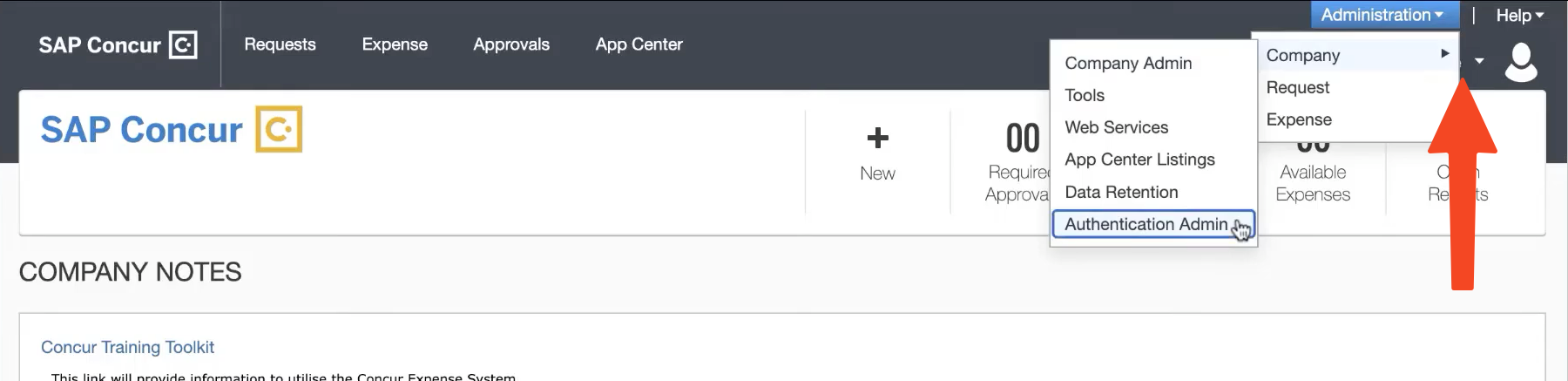
Go to Administration > Company > Authentication Admin:
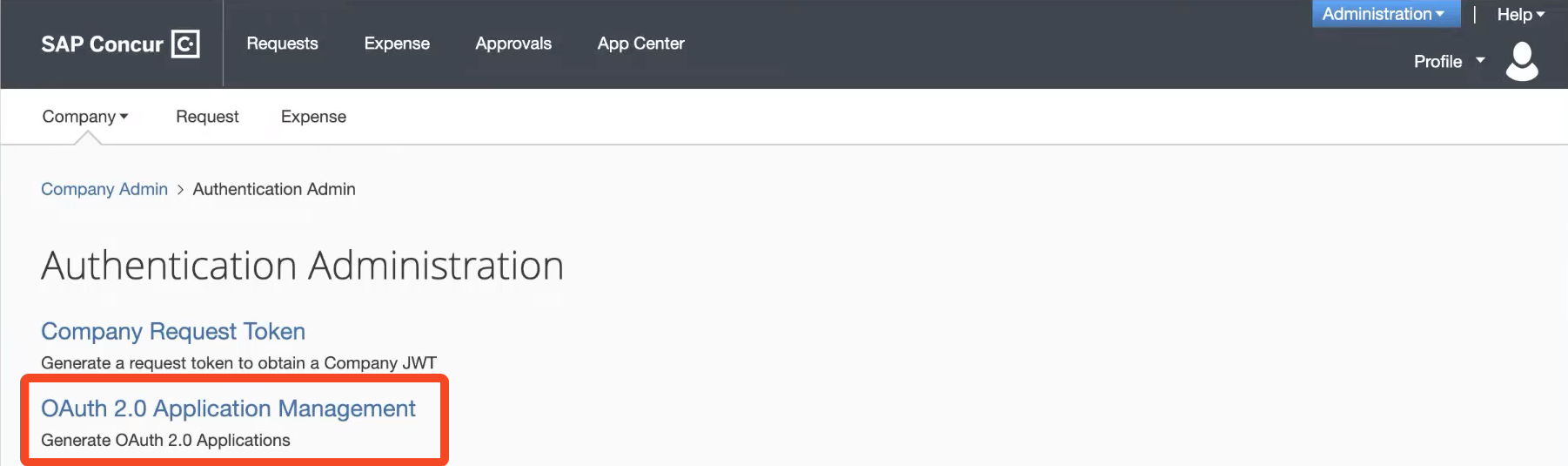
Click on OAuth 2.0 Application Management:
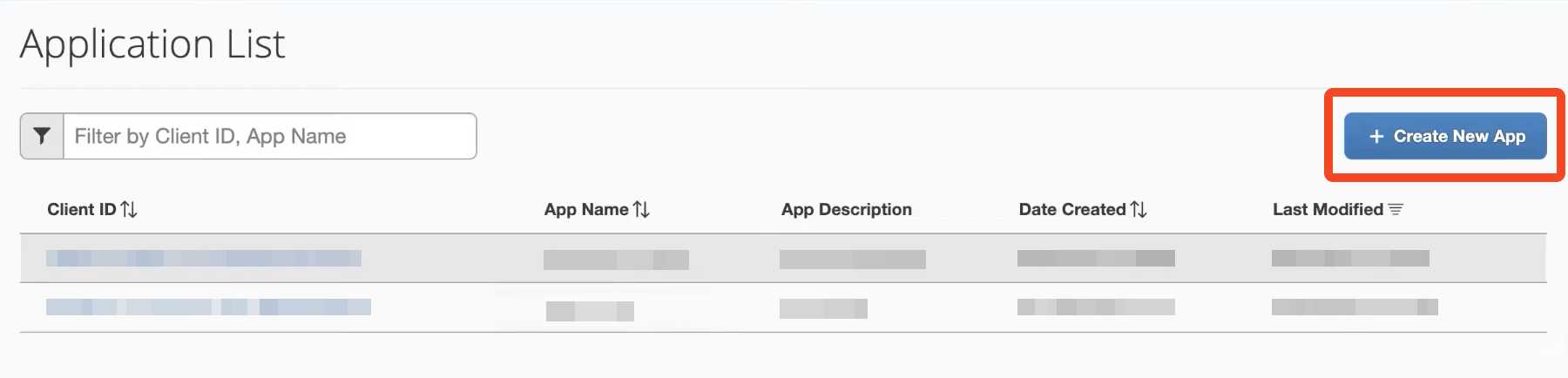
In the Application list view, click Create New App:
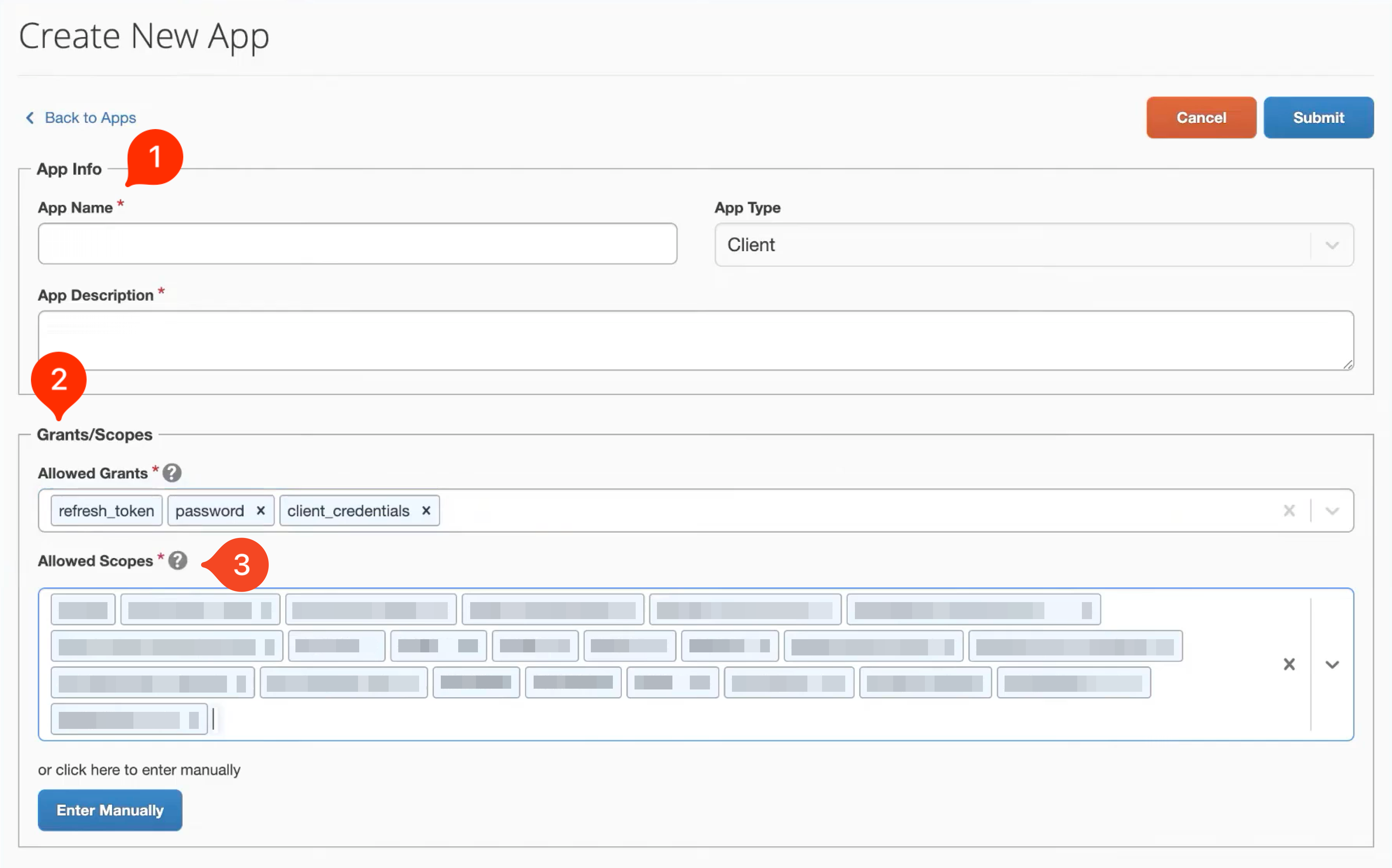
In the Create New App screen:
- Enter an App Name (e.g. 'SaaS Manager') and App Description ('SaaS Manager connector').
- For the Allowed Grants enter:
refresh_tokenpasswordclient_credentials The Allowed Scopes depend on the features you enable when you connect SAP Concur to SaaS Manager:
Users (required)
identity.user.ids.readidentity.user.core.readidentity.user.enterprise.read
Additional user data (optional)travel.user.general.readspend.user.general.readExpense reports (optional)
company.readcreditcardaccount.readexpense.report.readpurchaserequest.readuser.readspend.list.readuser_readBANKCCARDCOMPANYEXPRPTEXTRCTFOPGHOSTINVVEN
Additional receipt data (optional)receipts.readIMAGEProvisioning and Deprovisioning (optional)
identity.user.coreenterprise.writeonly
Click Submit.
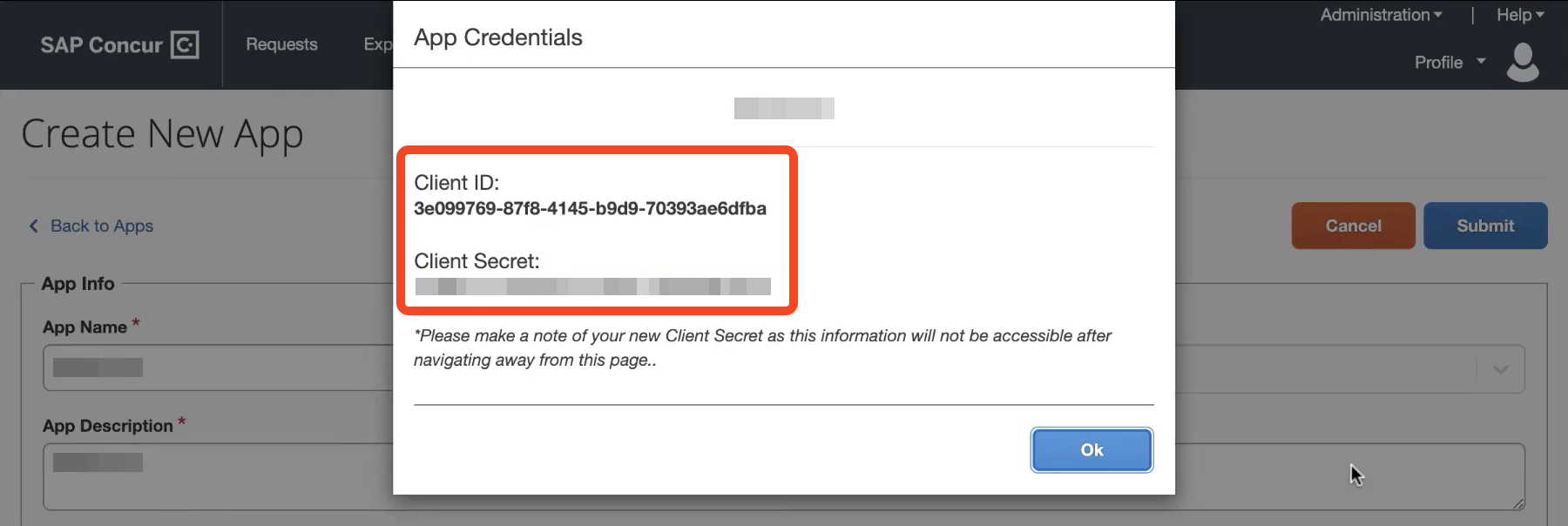
You will now be shown the Client ID and Client Secret. Note these down (e.g. copy to a text editor) as you will need to enter these into SaaS Manager later.
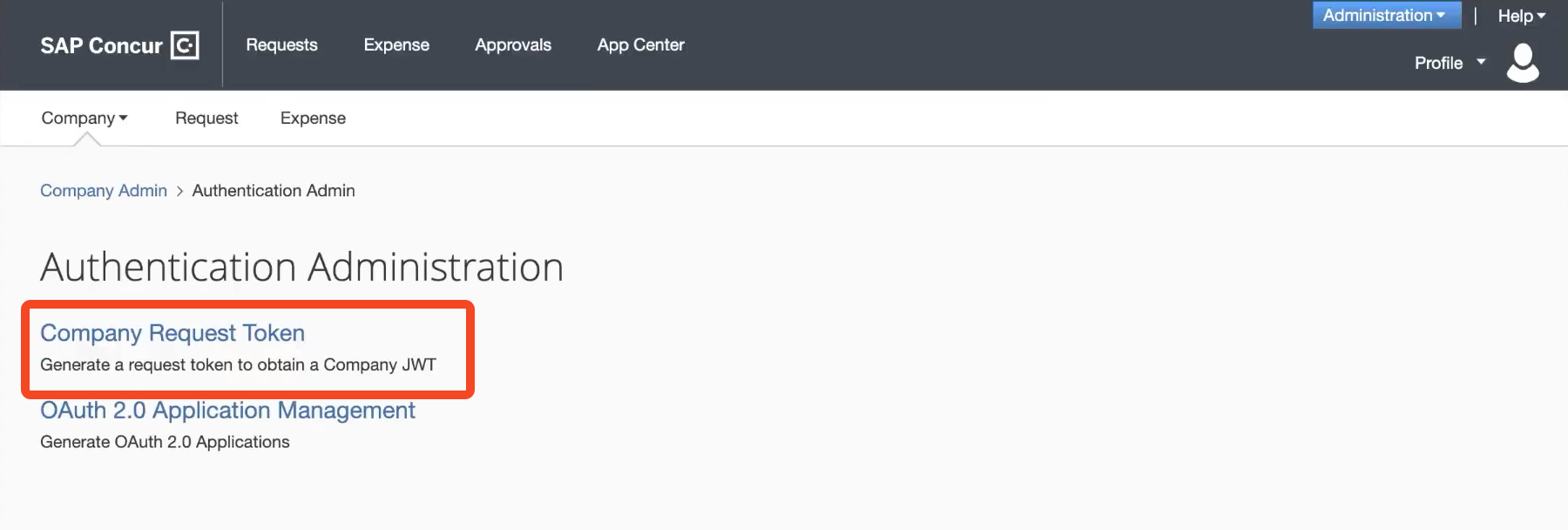
Go back to the Authentication Administration screen and click Company Request Token:
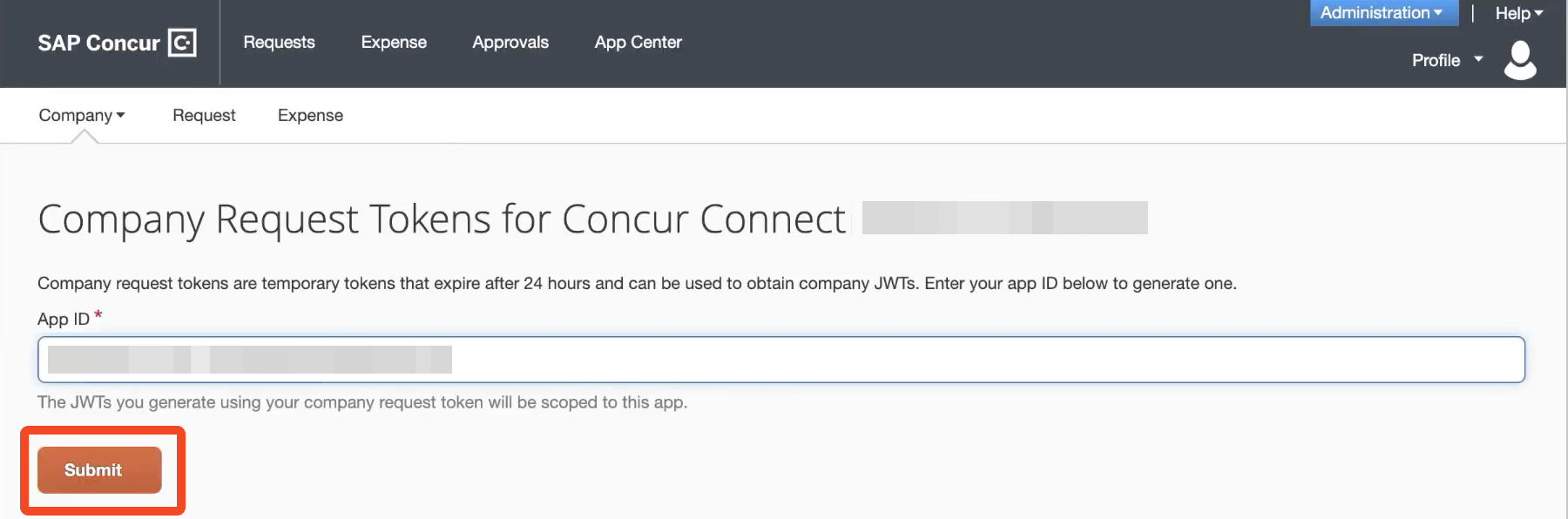
Enter the Client ID that you received earlier into the App ID field.
Click Submit:
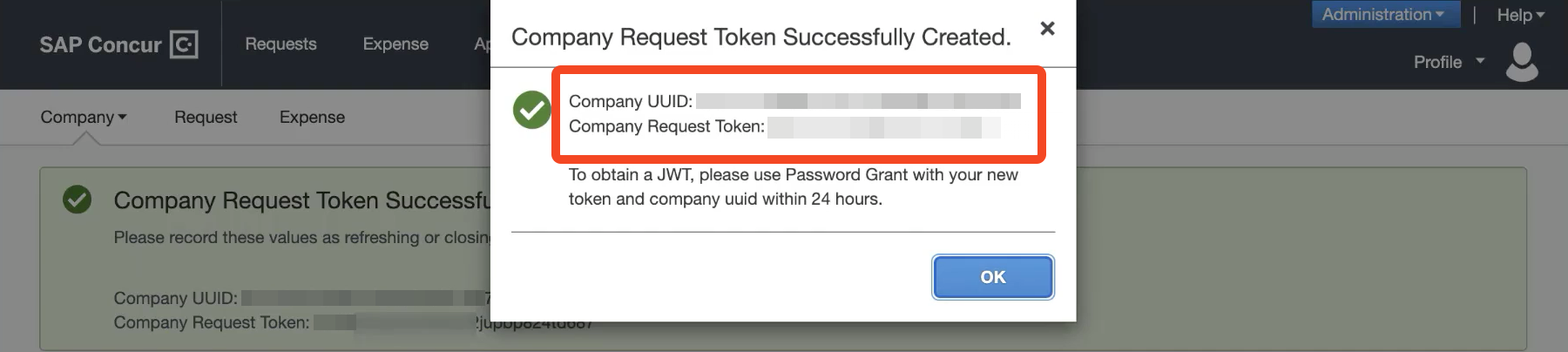
Finally you will be shown a Company UUID and Company Request Token. You will need to enter both of these into SaaS Manager, so copy them to a text editor.
Comments
0 comments
Please sign in to leave a comment.