Sometimes it's helpful to supplement existing People data with data from a Google Sheet.
Google Sheets produces links that are hard to guess, but are not secured in any other way.
For this reason we do not recommend storing sensitive data for a longer period of time. Ideally, you should manually refresh the integration in 1Password SaaS Manager and then remove it from the Google Sheet. Google republishes every 5 minutes.
If data is removed from the sheet, SaaS Manager deliberately does not remove employees from SaaS Manager when it resynchs.
We recommend leaving the headers in your sheet and you can then use this as a way to paste in data into the sheet, refresh the integration, and then remove it.
This way you can quickly update or add new people.
First publish your sheet by going to Share > Publish to web:
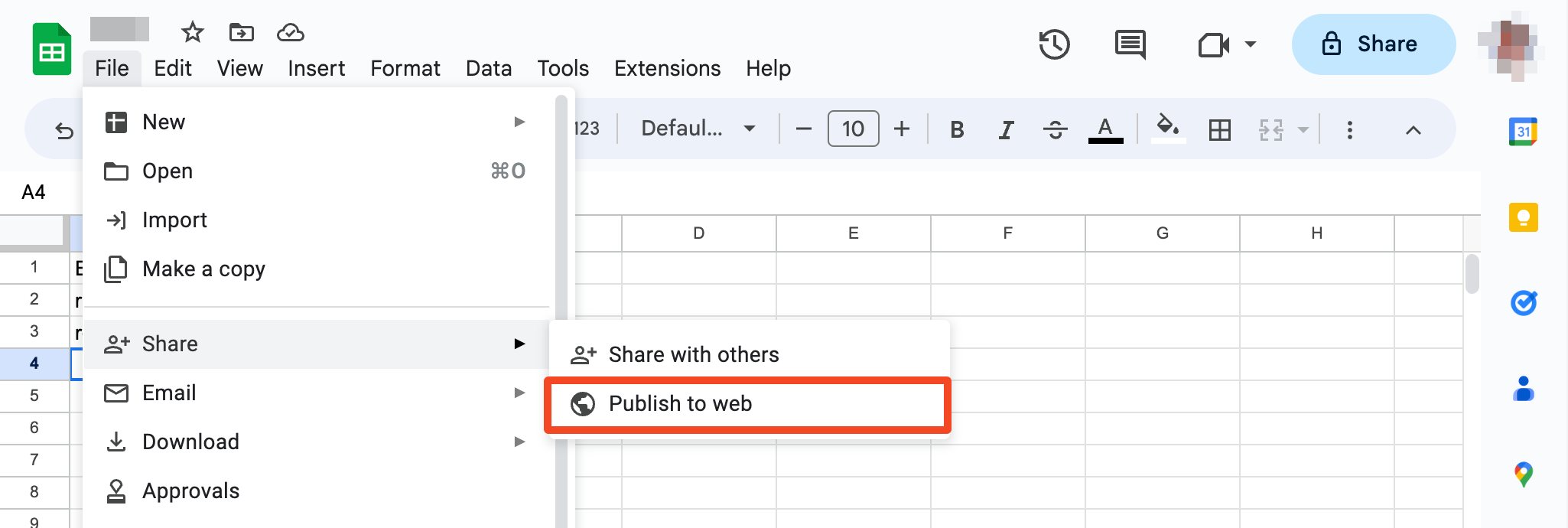
Choose Comma-separated values (.csv) as the format, select the sheet to publish and optionally check Automatically republish when changes are made:

Do not check Restrict access to the following.
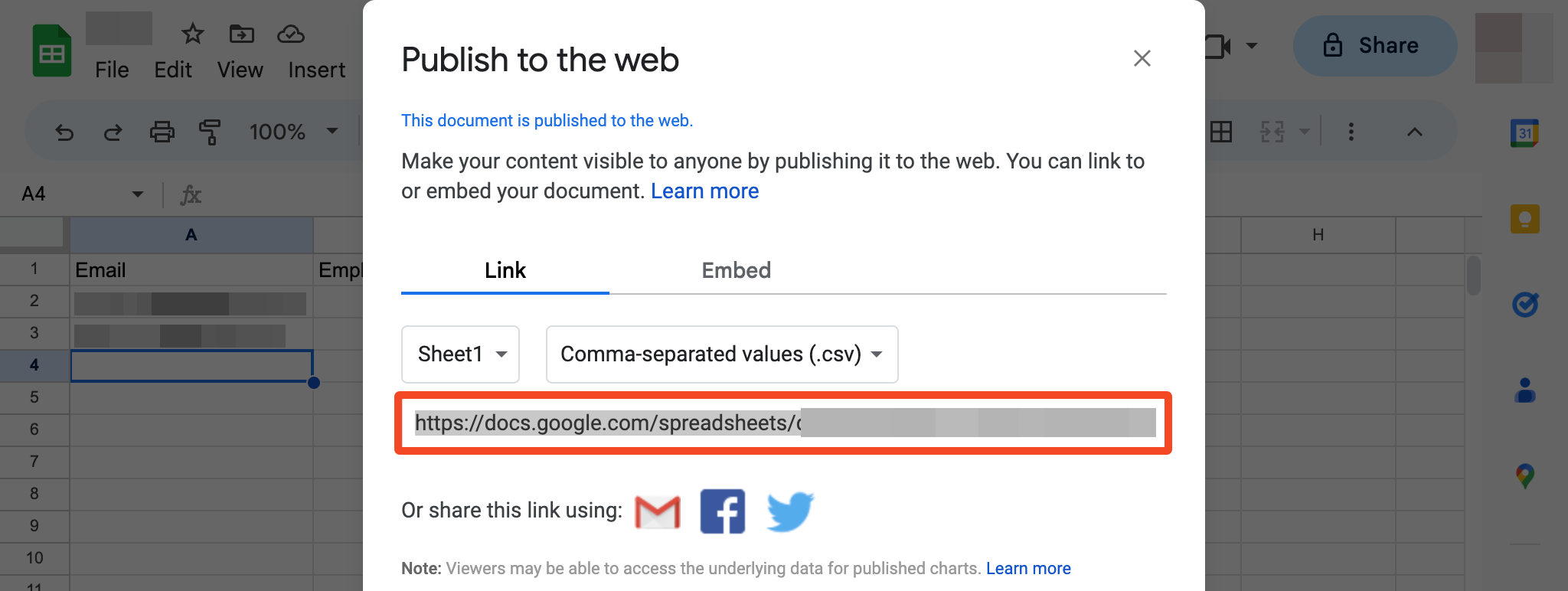
You will then be shown the published URL which you will need to cut and paste into SaaS Manager:
Column name mappings
SaaS Manager will synchronize the following column names:
| Column Name | Synonyms |
|---|---|
| Id | Unique Id |
| Email Address | |
| Employee Id | Employee Ref |
| First Name | |
| Last Name | Surname |
| Name | Full Name, Employee Name |
| Job Title | Title |
| Location | Office, Place of Employment, Work Address |
| Start Date | Hire Date, Date of Employment |
| Leaving Date | Termination Date, Termination |
| Team Ids | Team |
| Person Type | Type, Employee Type |
| Line Manager Email | Manager Email |
| Personal Email | Home Email |
SaaS Manager accepts different capitalization or spacing.
Person types
| Person type | Synonyms |
|---|---|
| Employee | Fixed Term Employee, Intern, Student |
| External | |
| Contractor | Consultant, Temp, Casual, Temporary |
| Service Account | System, System Account, Integrations |
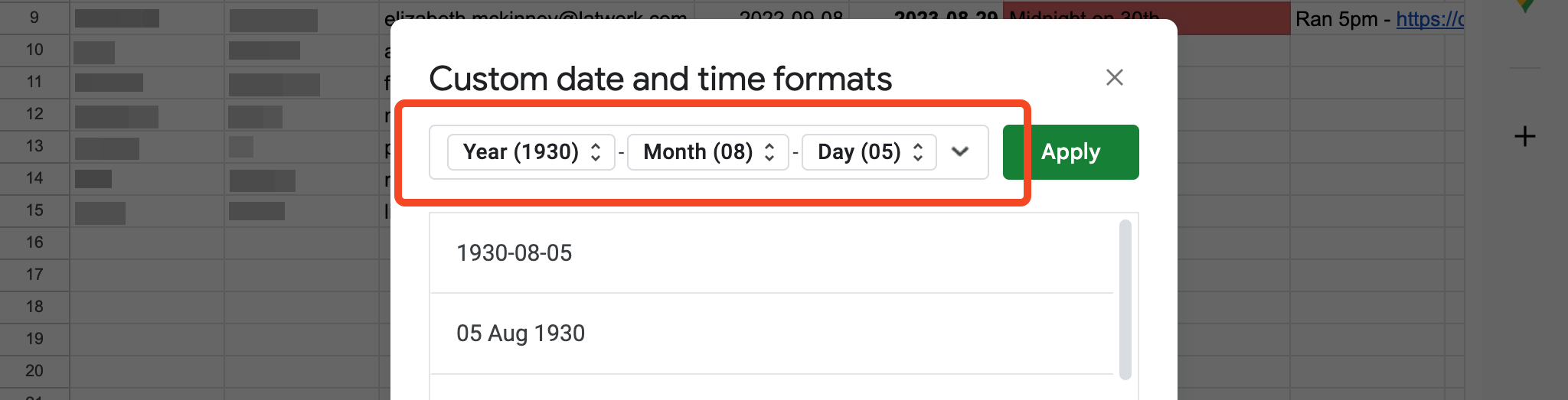
Please ensure that dates are formatted as yyyy-mm-dd or dd mmm yyyy, e.g. 2023-02-19 or 19 Feb 2023.
Go to Format > Number > Custom date and time:
Comments
0 comments
Please sign in to leave a comment.